Knowledge base › Getting started
Read your Home screen
Home shows what needs you today, then a few summary cards you choose. Open Catalyn in your Shopify admin and you land here.
What needs you
The Needs you list always comes first. Each line has a count, a short description and a Review button that opens the right page.
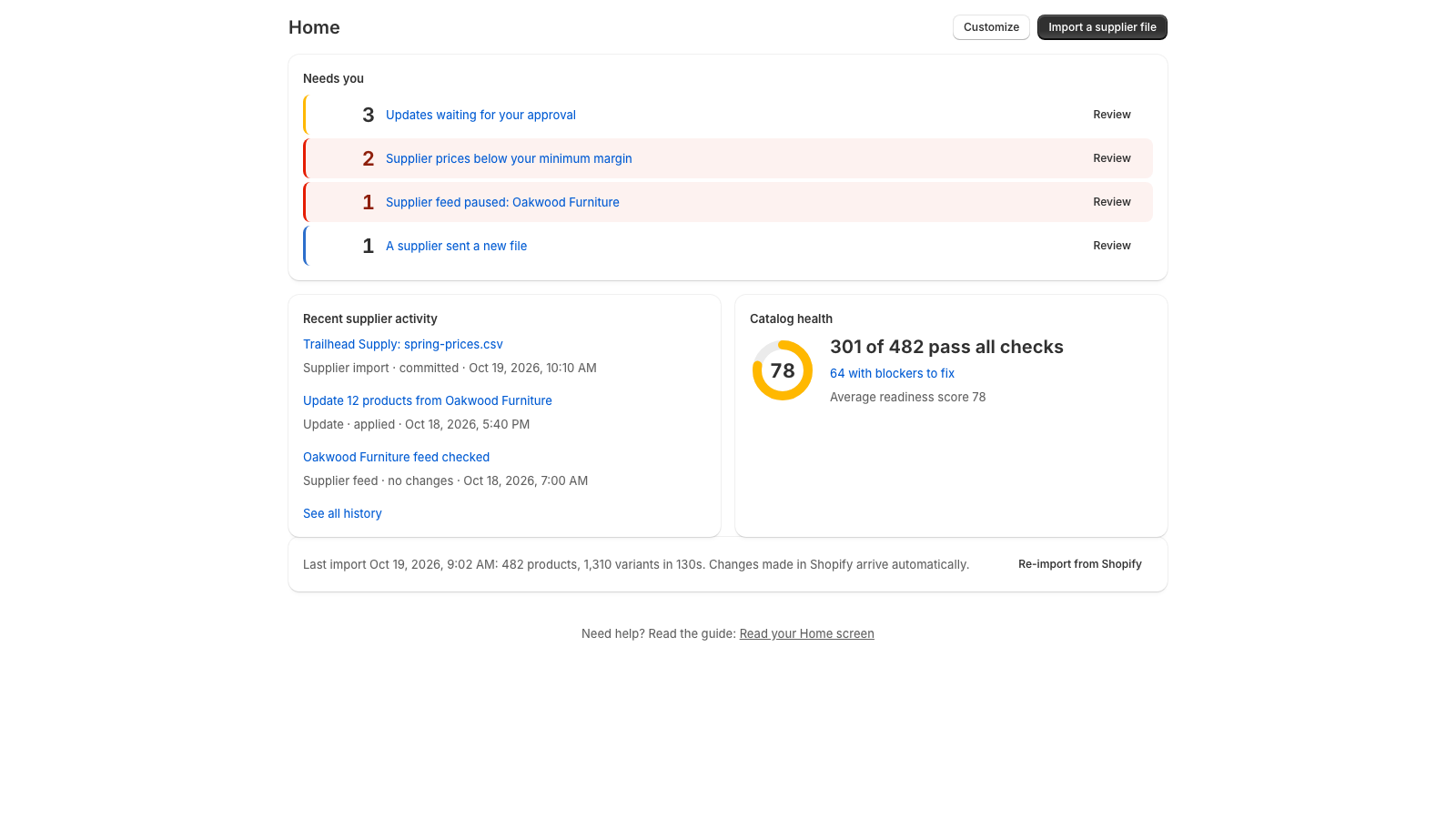
- Red lines are the most urgent, for example supplier prices below your minimum margin or a supplier feed that has paused.
- Amber lines are waiting for a decision, such as updates to approve.
- Blue lines are for your information, such as a new file a supplier sent.
When nothing is waiting, the list says "You're all caught up".
The cards under it
- Recent supplier activity shows the latest supplier files, feed checks and updates. See all history opens the full log under Approvals.
- Catalog health shows how many products pass every check, for example "301 of 482 pass all checks", the number with blockers to fix, and your average readiness score. Select the blockers link to see those products.
- The footer says when your catalog was last imported from Shopify. Changes you make in Shopify arrive automatically; Re-import from Shopify runs a full import if you want one now.
Choose your own cards
- Select Customize at the top right of Home.
- Tick the cards you want. Readiness numbers, Readiness over time, Readiness scores, Products by stage, Channel readiness and Top issues are all available.
- Use Move up and Move down to set the order. Needs you always stays first.
- Save. The choice applies to everyone using Catalyn in your store. Reset to default brings back Recent supplier activity and Catalog health.
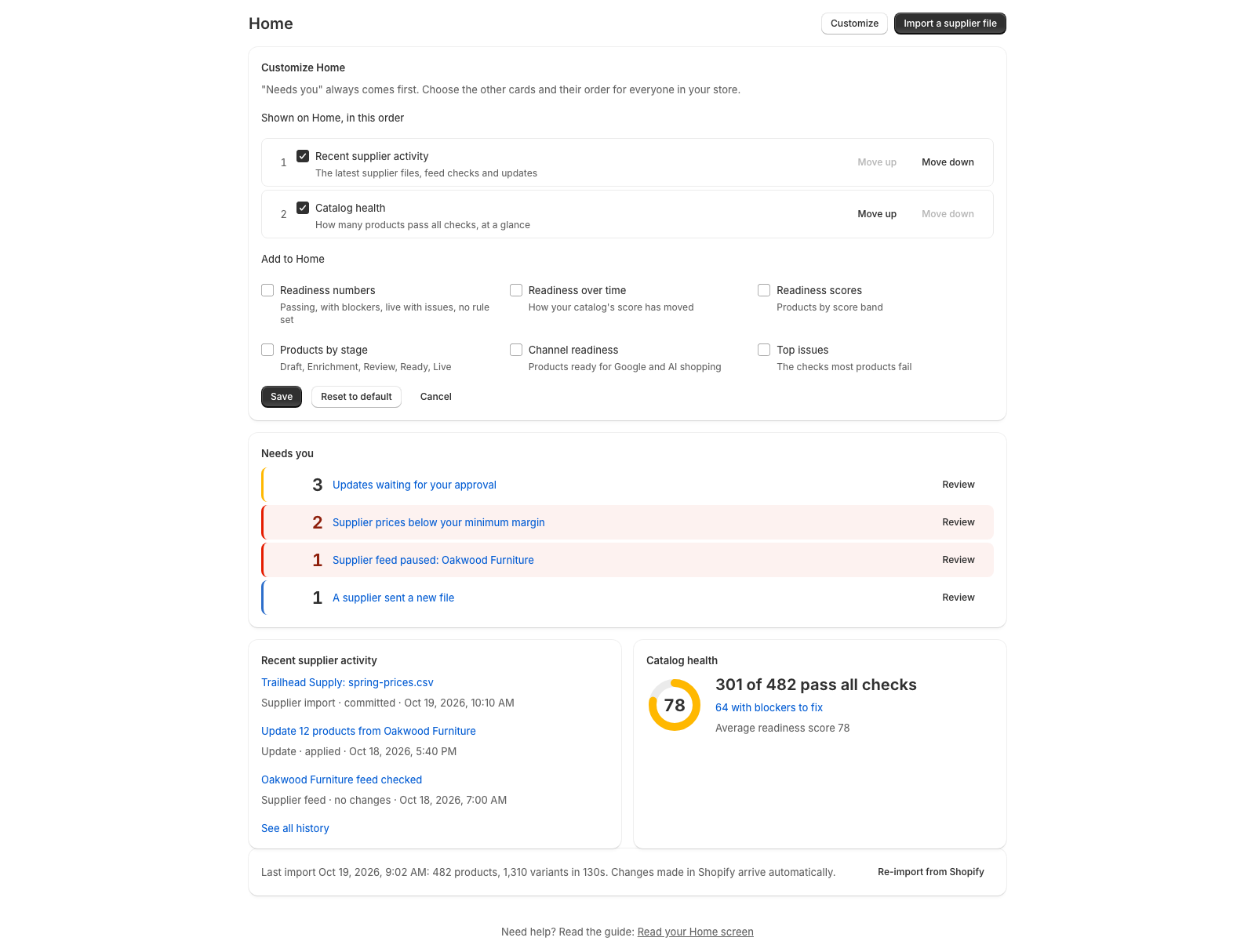
Here is Home with Catalog health, Readiness numbers, Readiness scores and Top issues turned on:
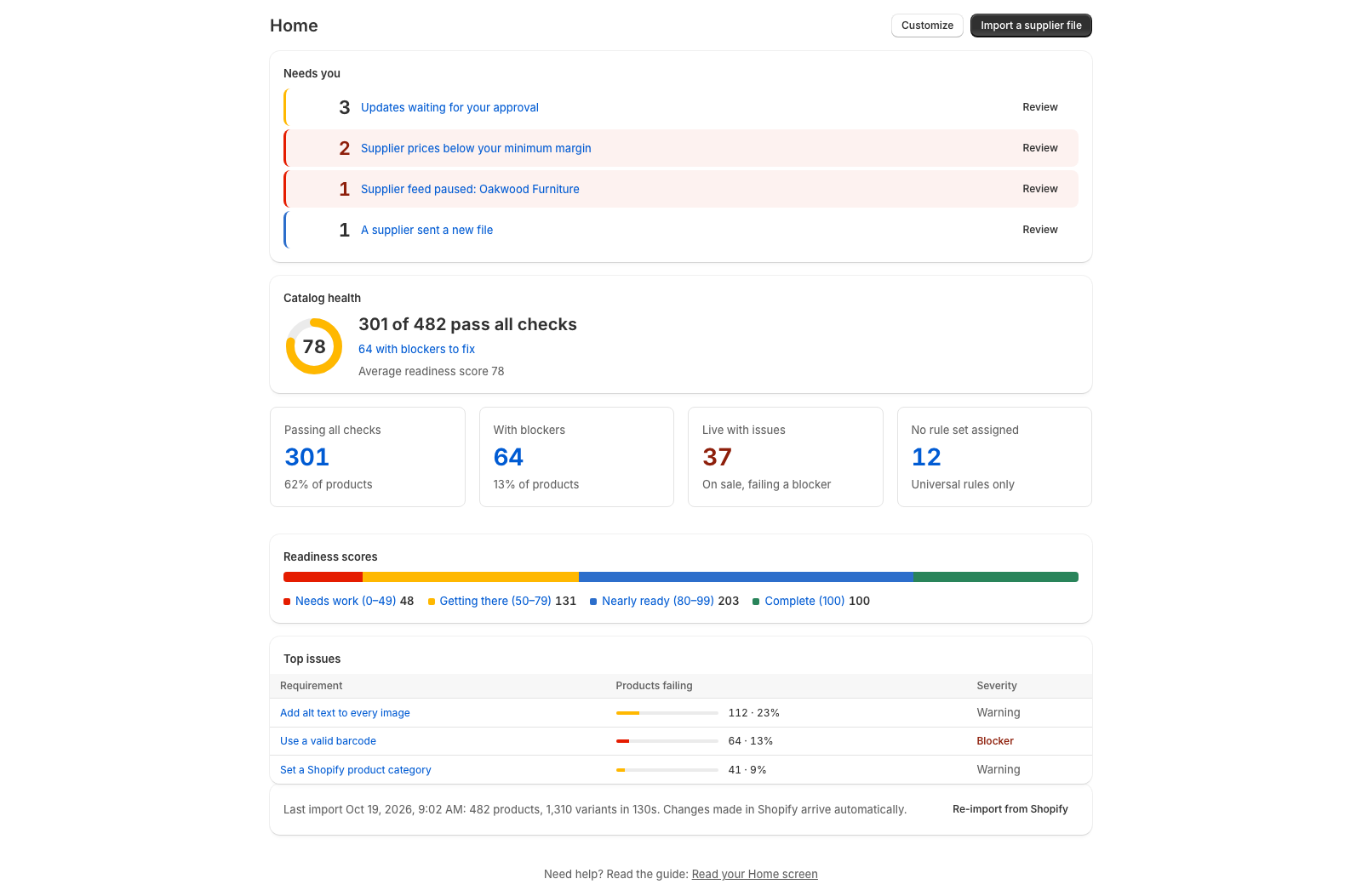
- Readiness numbers: products passing all checks, with blockers, live with issues, and with no rule set assigned.
- Readiness scores: every product sits in a score band: Needs work (0 to 49), Getting there (50 to 79), Nearly ready (80 to 99) or Complete (100). Select a band to see its products.
- Top issues: the checks the most products fail, with how many fail and whether each is a blocker or a warning. Select a check to see the products.
Related
See Set a minimum margin for a supplier and Approve and undo an update for the two items you will see most often under Needs you.
Still stuck, or something here is out of date? Email [email protected].