Knowledge base › Approvals and your team
Approve and undo an update
Every change Catalyn makes to your Shopify store waits in Approvals as an update. You see exactly what will change, approve it, and can undo it afterwards.
Approve an update
- Open Approvals. Each item is an update waiting for you.
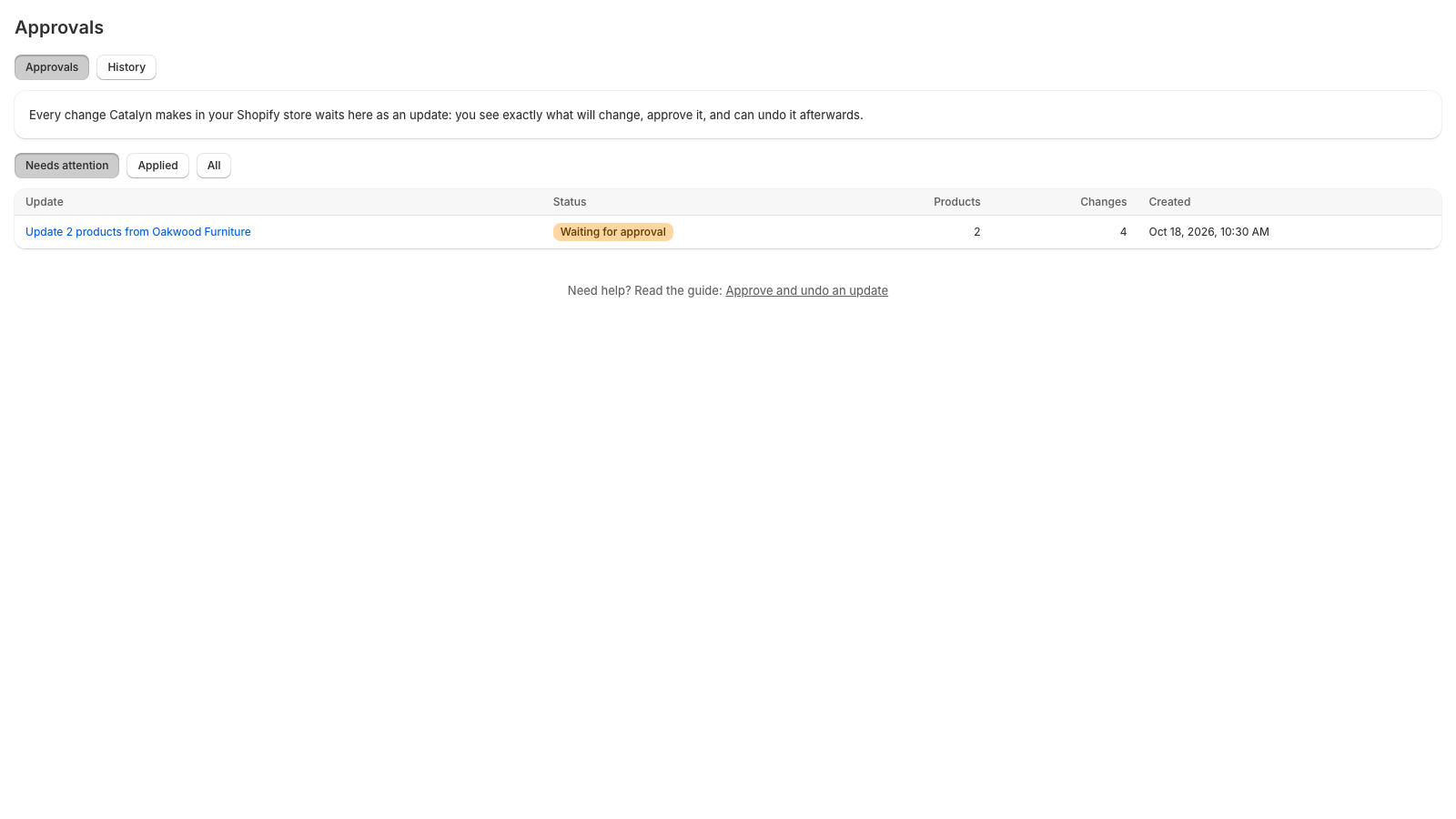
The Approvals list with an update waiting for approval - Open it to see every field that will change, before and after, for each product.
- Choose one of three things:
- Approve and apply sends it to Shopify now.
- Schedule sends it later, at a time you pick.
- Discard drops it. Nothing changes in your store.
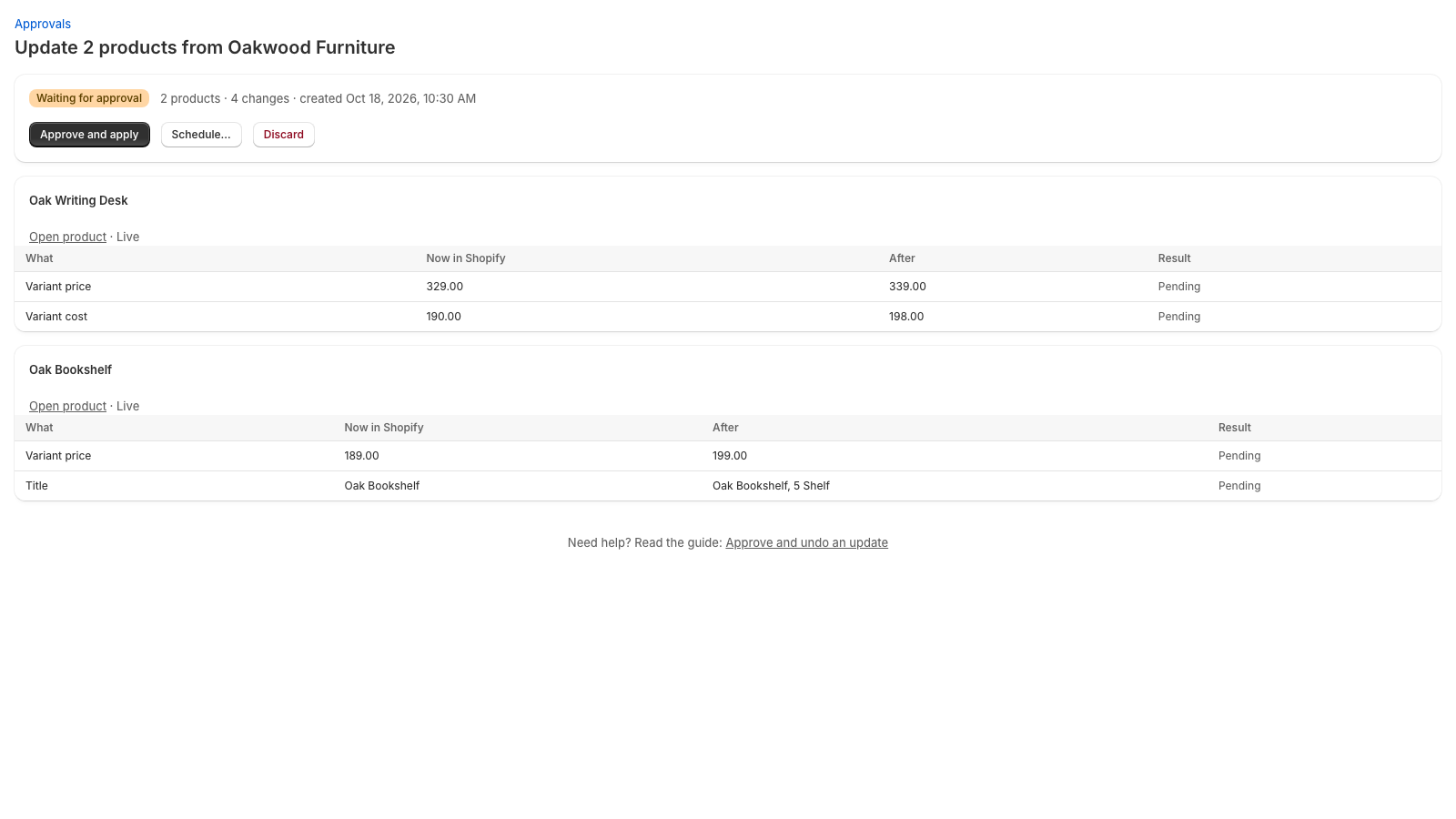
An update waiting for approval, with the price, cost and title changes for two products
Undo an update
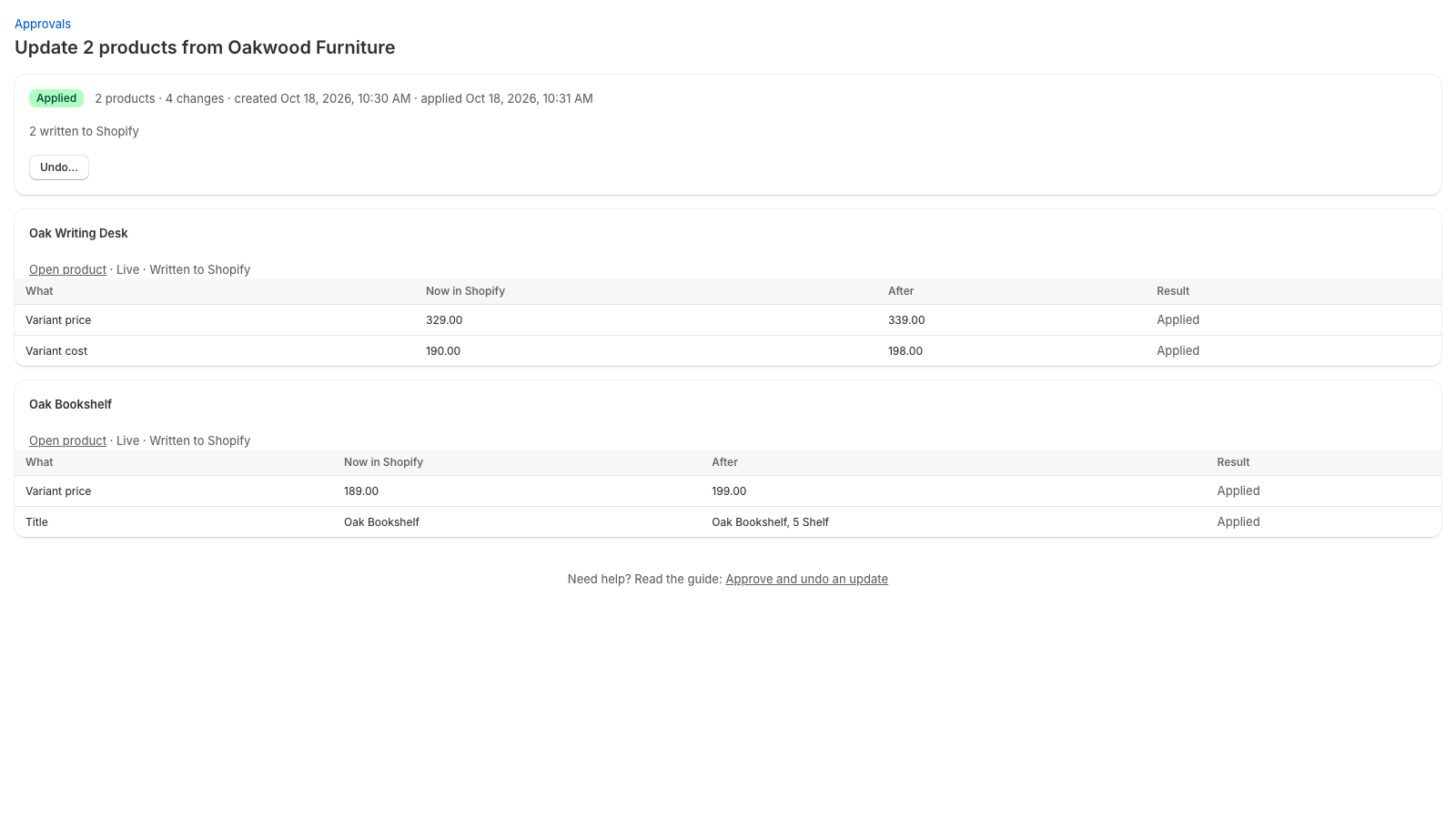
- Open the update from History (the tab beside Approvals).
- Choose Undo. The previous values are restored in Shopify, and the undo is recorded as its own update.
If someone edits a product in Shopify
If you edit a published product directly in Shopify, Catalyn marks it Changed directly in Shopify. Choose Keep to accept the Shopify version, or Restore to put Catalyn's version back.
Who can approve
Store owners can limit who can approve under Settings, Team and email. Anyone else can still see updates, but the approve button is off for them.
Related
Import your first supplier file · Find and fix products that need attention
Still stuck, or something here is out of date? Email [email protected].