Knowledge base › Approvals and your team
Connect an AI assistant
You can let an AI assistant such as Claude Code, Claude Desktop or Cursor read your Catalyn catalog, so you can ask questions like "which products are blocked for Google, and why?". An assistant can also draft edits, but it can never publish anything: a drafted edit to a live product waits for you to approve it. AI assistant keys are included on both paid plans: 2 on Starter and 10 on Growth.
Only the store owner can create or revoke keys.
Create a key
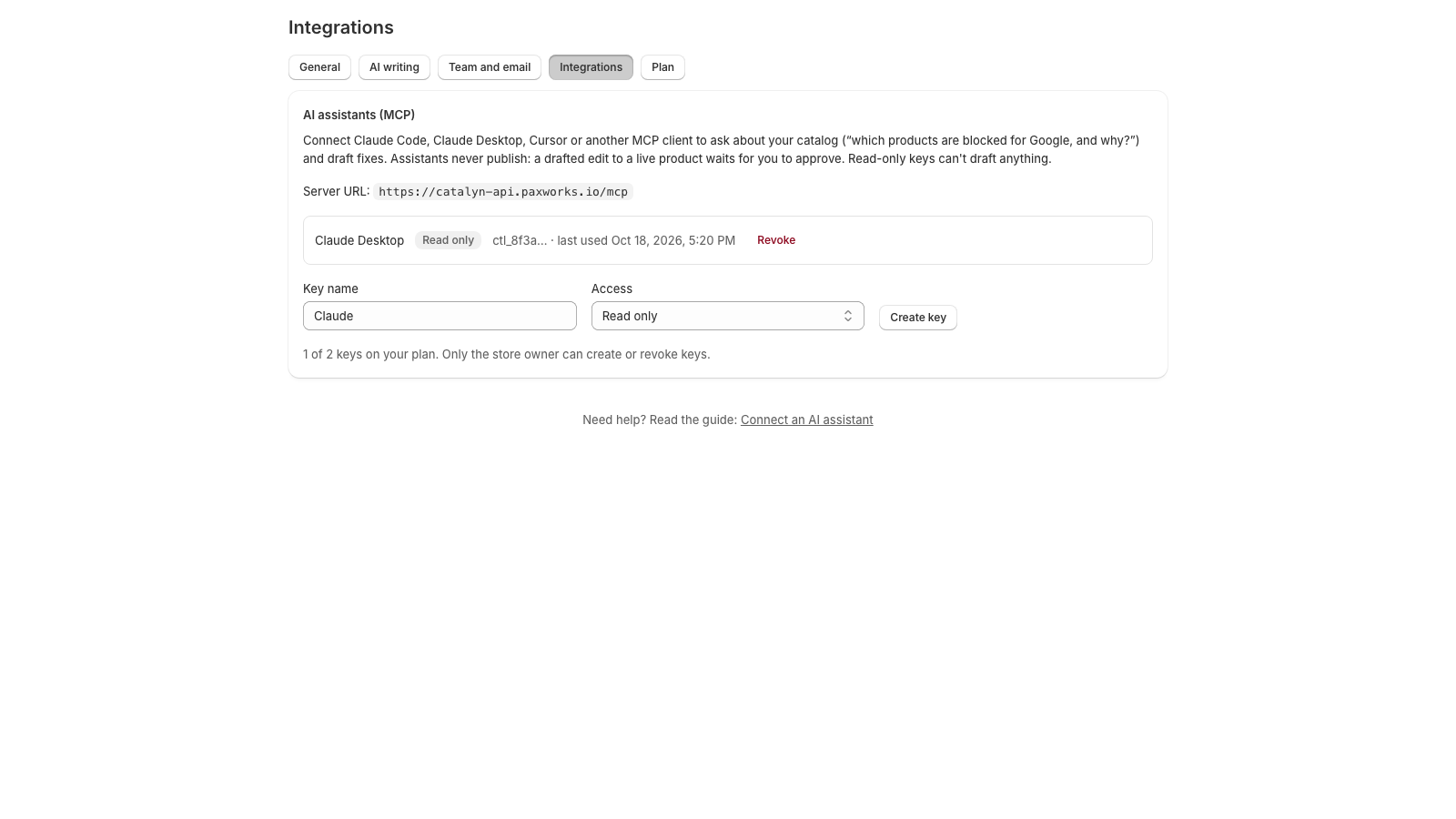
- Go to Settings, Integrations. The AI assistants (MCP) section shows the Server URL your assistant connects to.
- Under Key name, name the key, for example the name of the assistant.
- Choose the Access:
- Read only: the assistant can look up products, suppliers, imports and updates. It can't change anything.
- Read and draft edits: it can also draft changes to a product's title, description, vendor, type, tags, SEO fields or metafields.
- Select Create key.
Copy the key now
The key is shown once. Copy it before you leave the page, because it can't be shown again.
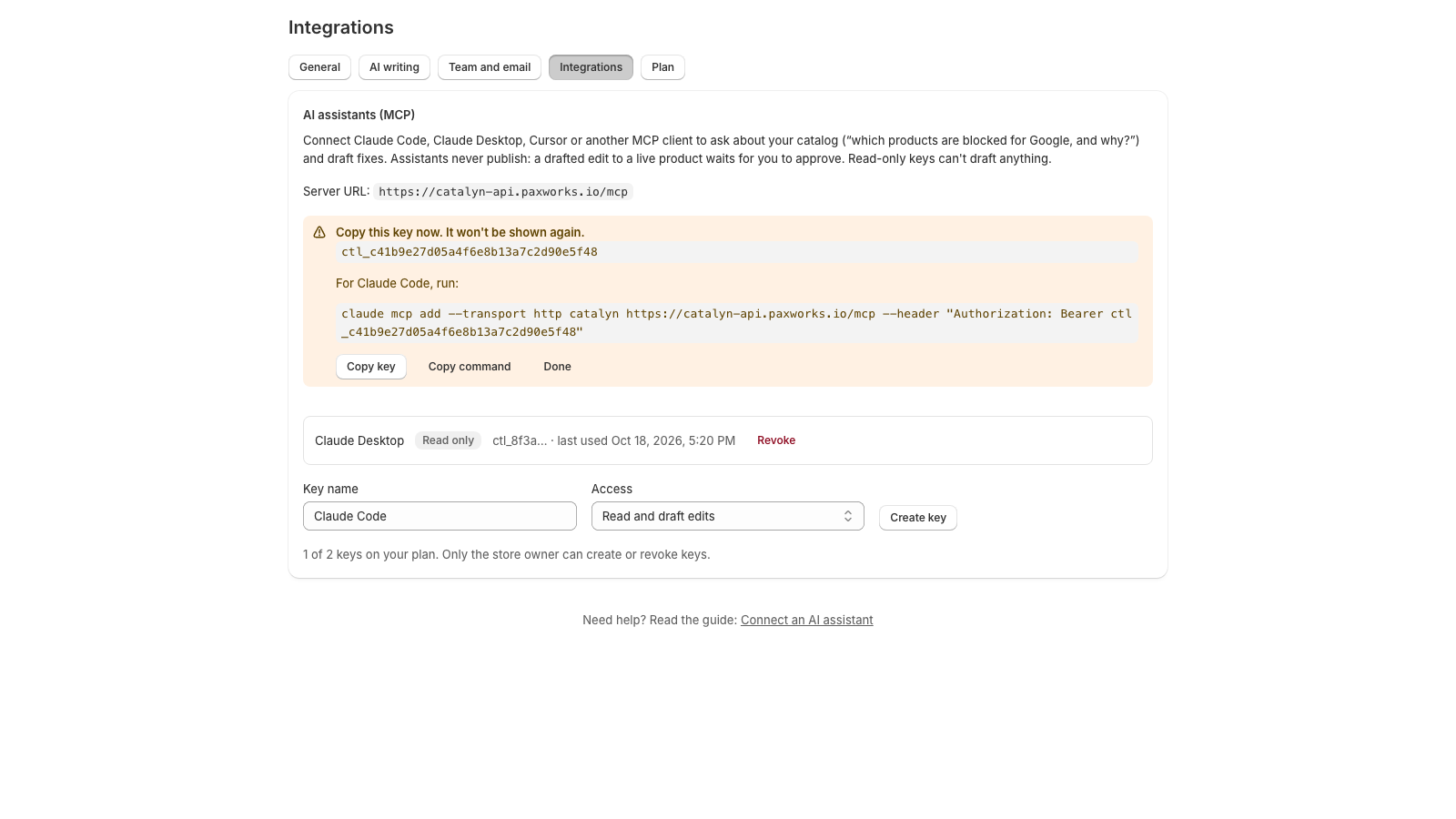
- Copy key copies the key.
- For Claude Code, Copy command copies a ready-made
claude mcp addcommand with the key in it. Paste it into your terminal. - For other assistants, add a remote server with the Server URL and an
Authorization: Bearerheader holding the key.
Select Done when you have saved it.
What the assistant can do
- Summarise your catalog and search products by text, stage, readiness, failing rule, channel or supplier.
- Show one product in full, including what is failing and why.
- List your suppliers with their grades, show a supplier's scorecard, recent imports and updates.
- With a draft key, draft an edit to one product. For a live product it appears in Approvals, shown as made by "AI assistant" and the key's name. For other products it changes Catalyn's copy only.
An assistant never sends anything to Shopify, approves an update, moves a product or deletes anything.
Keep keys safe
- Each key shows when it was last used. Use a separate key for each assistant.
- Revoke a key to stop it working at once.
- Each key is limited to 120 requests a minute.
- Keys only work while your store is on a paid plan.
Web versions of Claude and ChatGPT that need a sign-in flow can't connect yet. Tools that accept a header, such as Claude Code, Claude Desktop (through mcp-remote) and Cursor, can.
Related
Approve and undo an update · Find and fix products that need attention
Still stuck, or something here is out of date? Email [email protected].