Knowledge base › Approvals and your team
Team, approvals and email
Anyone with access to Catalyn in Shopify can use it. These settings let the store owner decide who can approve changes, how products are signed off, and which emails Catalyn sends.
Choose who can approve updates
Only the Shopify store owner can change these settings.
- Go to Settings, Team and email.
- Under Staff approvers, tick Only named approvers can approve updates and sign off products moving from Review to Ready.
- Tick the people who may approve. Staff appear in the list after they have opened Catalyn, and their names are checked when they visit Settings.
- Select Save approvers.
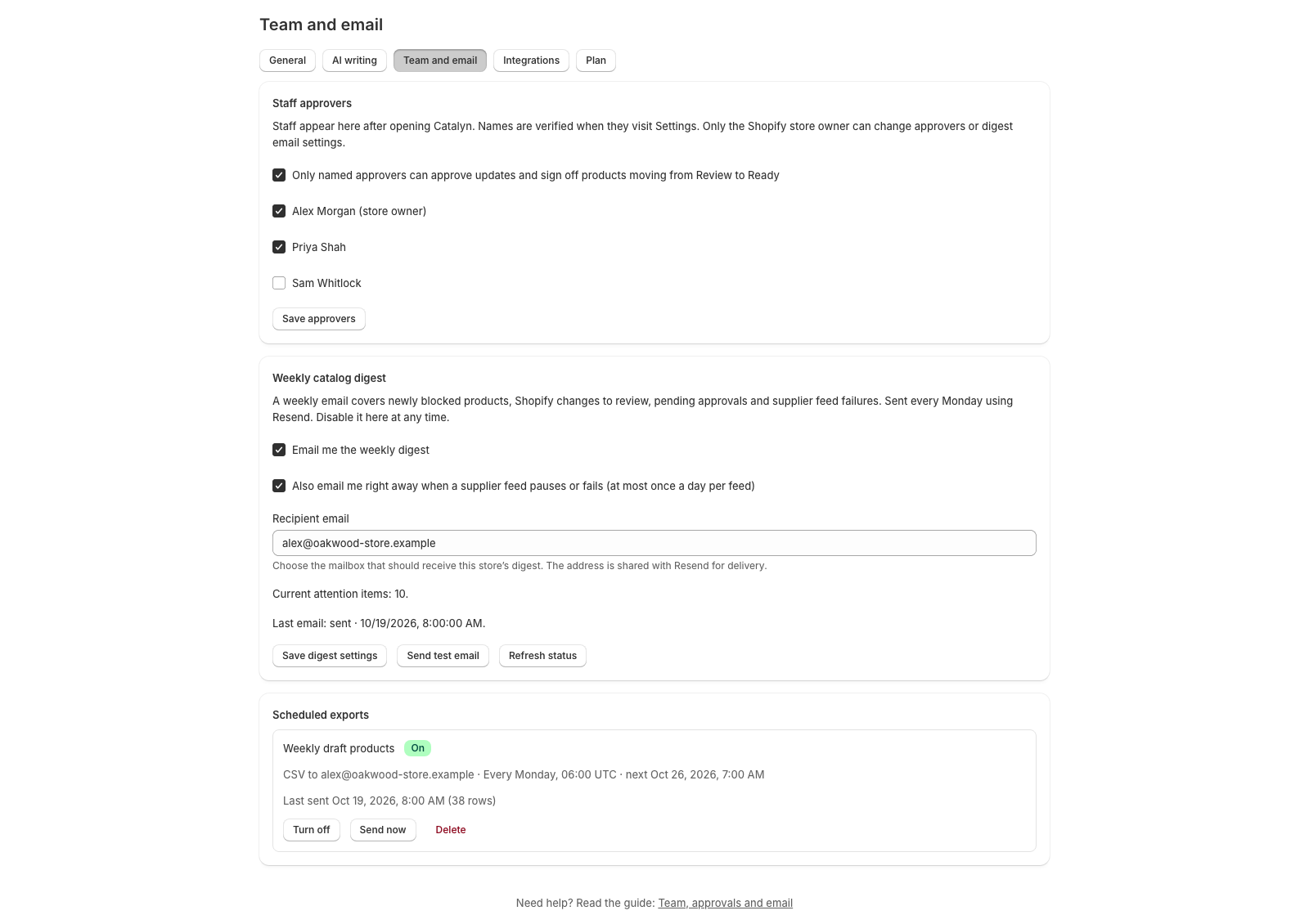
People who are not named approvers can still see updates, but the Approve and apply button is off for them. If you don't tick the box, anyone on the team can approve.
Get a weekly digest and feed alerts
Under Weekly catalog digest:
- Email me the weekly digest sends a summary each week of newly blocked products, Shopify changes to review, updates waiting for approval and supplier feed failures.
- Also email me right away when a supplier feed pauses or fails sends one email at most once a day for each feed.
- Recipient email is where they go. The address is shared with the email provider only to deliver them.
- Send test email checks it works, and Refresh status shows the result of the last send.
Select Save digest settings after changing anything.
Scheduled exports
Exports you schedule from the Products page are listed under Scheduled exports on the same page. You can turn one on or off, Send now to check it, or Delete it. See Edit products in a spreadsheet.
Workflow settings
Settings, General has the rules for how products move through your workflow.
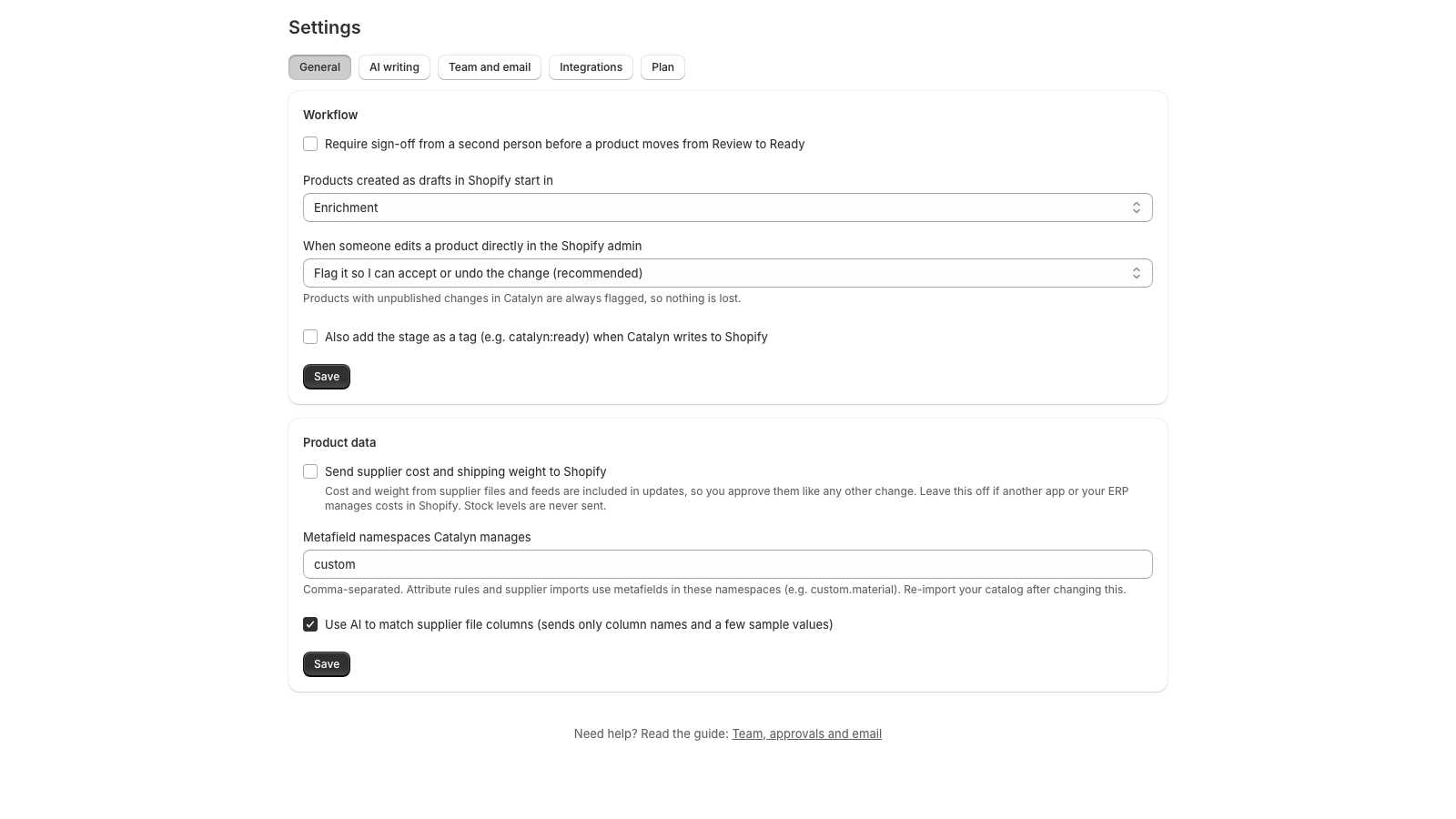
- Require sign-off from a second person before a product moves from Review to Ready adds a second pair of eyes. A person can't sign off a product they sent for review.
- Products created as drafts in Shopify start in sets the first stage for drafts that arrive from Shopify.
- When someone edits a product directly in the Shopify admin chooses between flagging the change so you can accept or undo it (recommended) and accepting it automatically. Products with unpublished changes in Catalyn are always flagged.
- Also add the stage as a tag writes a tag such as
catalyn:readyto Shopify when Catalyn writes there. - Send supplier cost and shipping weight to Shopify includes them in updates, which you approve like any other change. Leave it off if another app manages costs. Stock levels are never sent.
- Use AI to match supplier file columns turns the AI column matcher on or off. When it is off, columns are matched by keyword.
Select Save under each section after you change it.
Related
Approve and undo an update · Find and fix products that need attention
Still stuck, or something here is out of date? Email [email protected].