Knowledge base › Suppliers and imports
Import your first supplier file
Catalyn turns a supplier's price list into products you can check and approve. Nothing reaches your Shopify store until you approve it, and new products start in Draft.
You need a paid plan to import. On the free plan you can check a file first and see what importing it would do.
1. Upload the file
- Go to Suppliers, Imports.
- Choose the supplier, or choose New supplier and type its name.
- Add the file: a CSV, Excel, JSON or XML file, a PDF price list, or a photo of a label or catalogue page. No file to hand? Choose Try a sample supplier file: four outdoor products that import as drafts, so you can delete them afterwards.
- Select Upload and map columns.
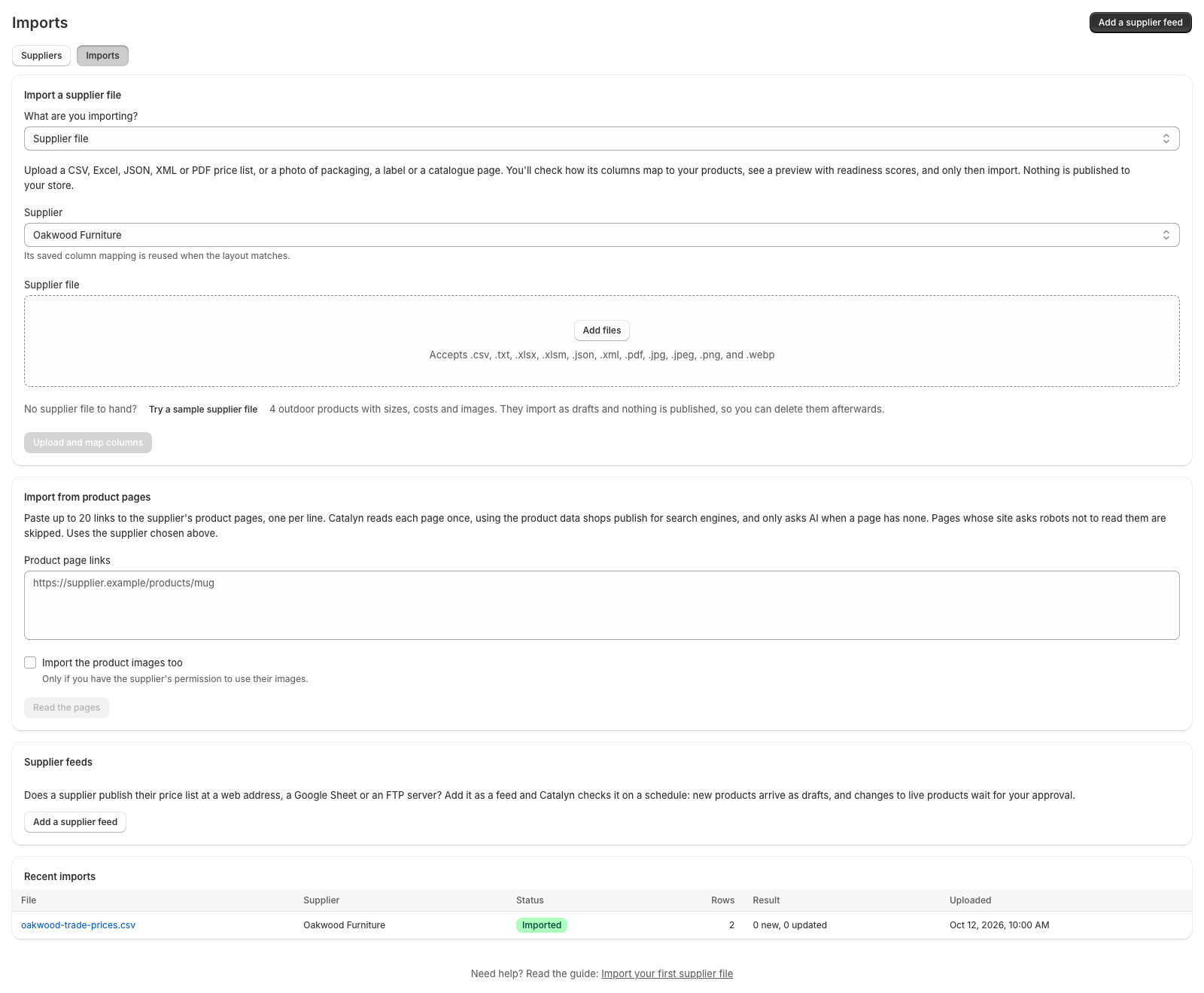
PDFs and photos are read by an AI model. Catalyn asks you to agree before it sends the file to Anthropic, and you check the values it finds against the original before you import.
2. Map the columns
Catalyn suggests which column is which, in any language. The next time you import from the same supplier with the same layout, the mapping is reused.
- Check the suggested field for each column.
- Confirm the money and stock columns. Tick the box under price, cost and stock to say each one really is what Catalyn thinks it is. This stops a pack quantity being imported as stock, or a trade price as a selling price.
- Confirm the supplier's currency. It must match your store's currency. Catalyn never converts prices behind your back, and a mismatch blocks the import.
- Optional: enter a minimum margin for this supplier.
- Select Check and preview.
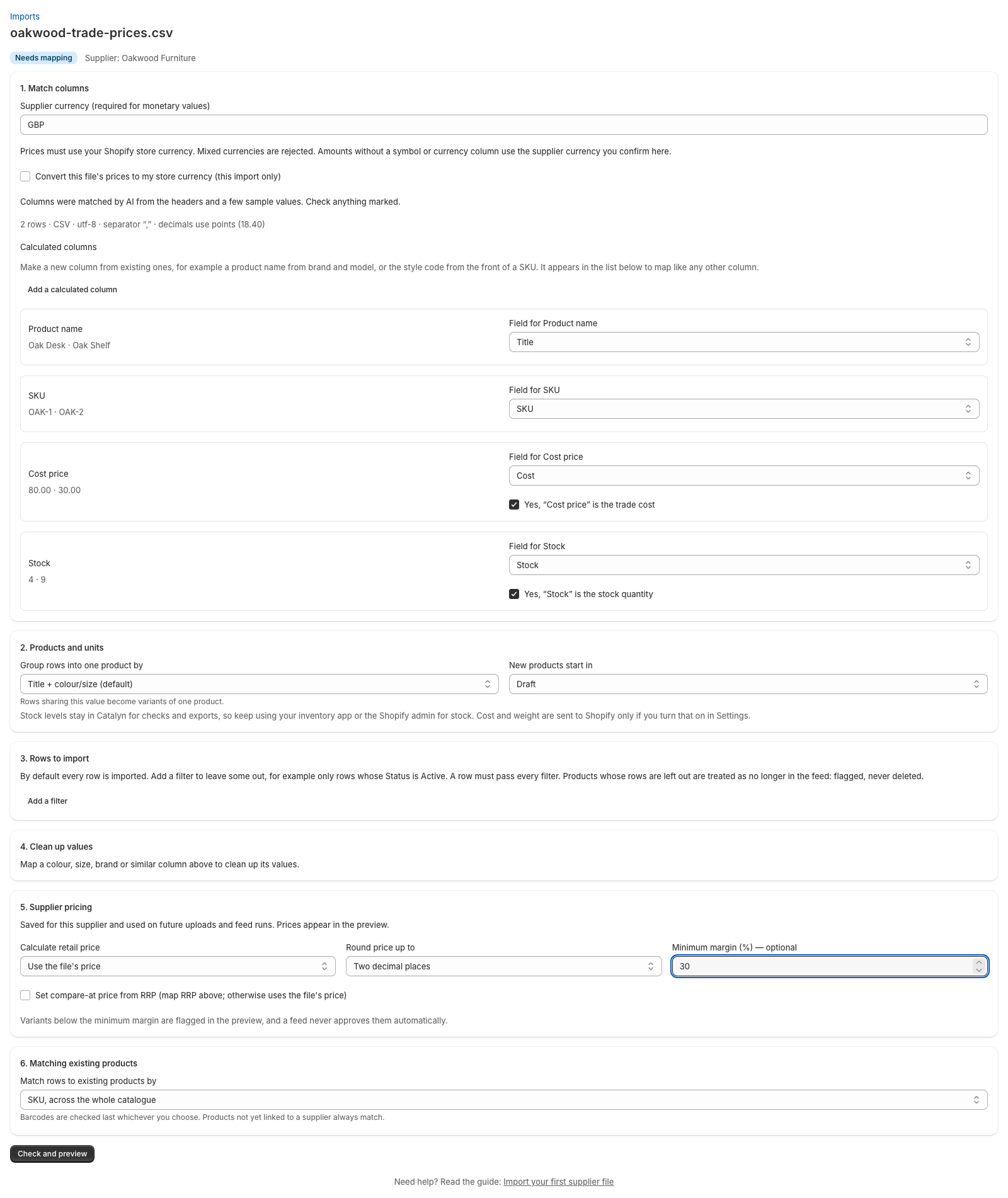
On a paid plan this page also lets you leave out rows, clean up values, set supplier pricing and combine columns. See Clean up messy supplier values and Set a minimum margin for a supplier.
3. Preview before you import
The preview shows what would happen, and nothing has been written yet:
- how many products are new, updated, unchanged or rejected, and the average readiness score after the import;
- any price that would sell below your minimum margin, with the price that restores it;
- a list of products, with what changes in each.
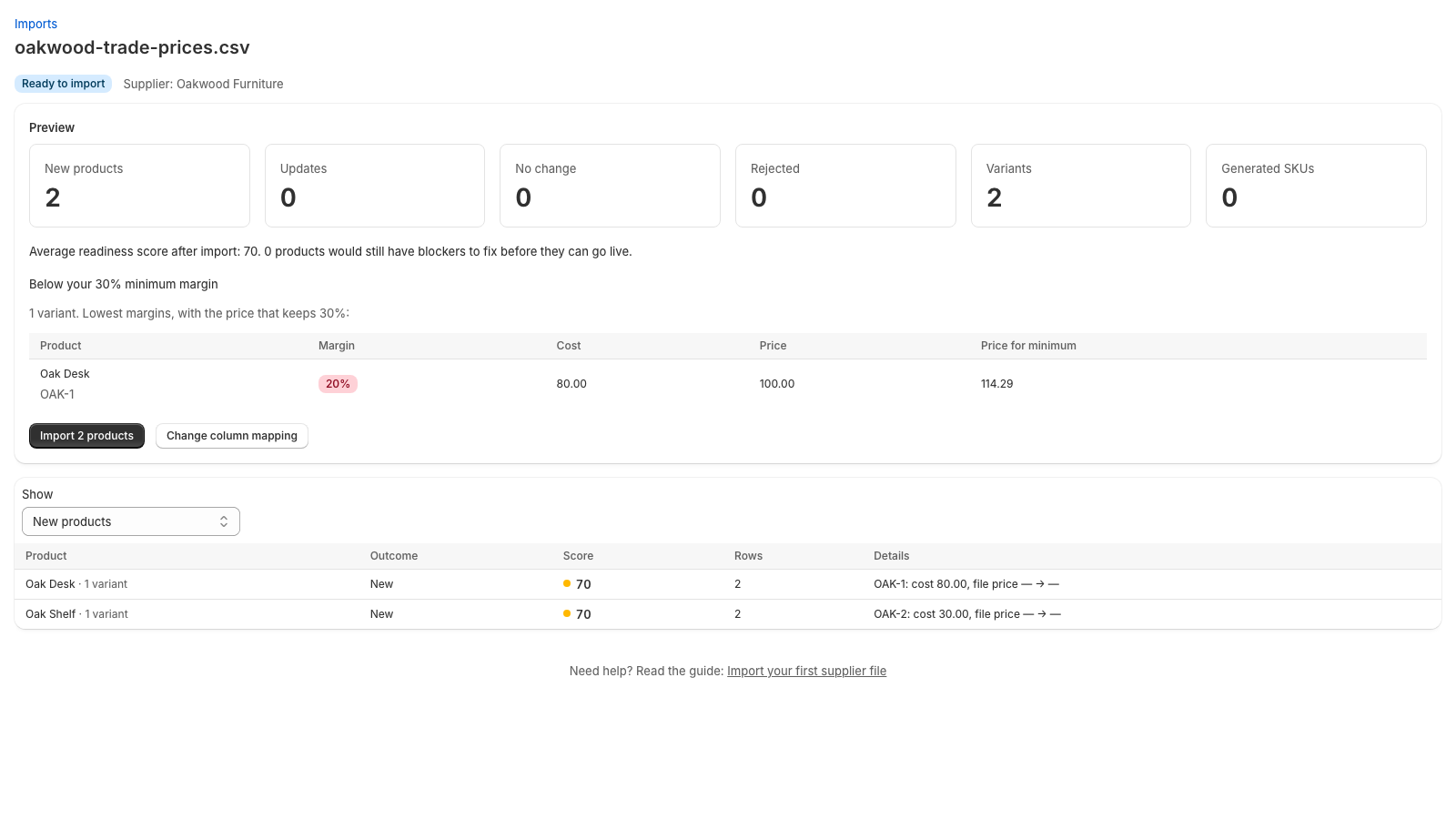
If something looks wrong, select Change column mapping and check again. When it looks right, select Import.
4. After the import
New products arrive in Draft, checked against your quality rules, and nothing is published to your store. Existing products that would change wait in Approvals until you approve them.
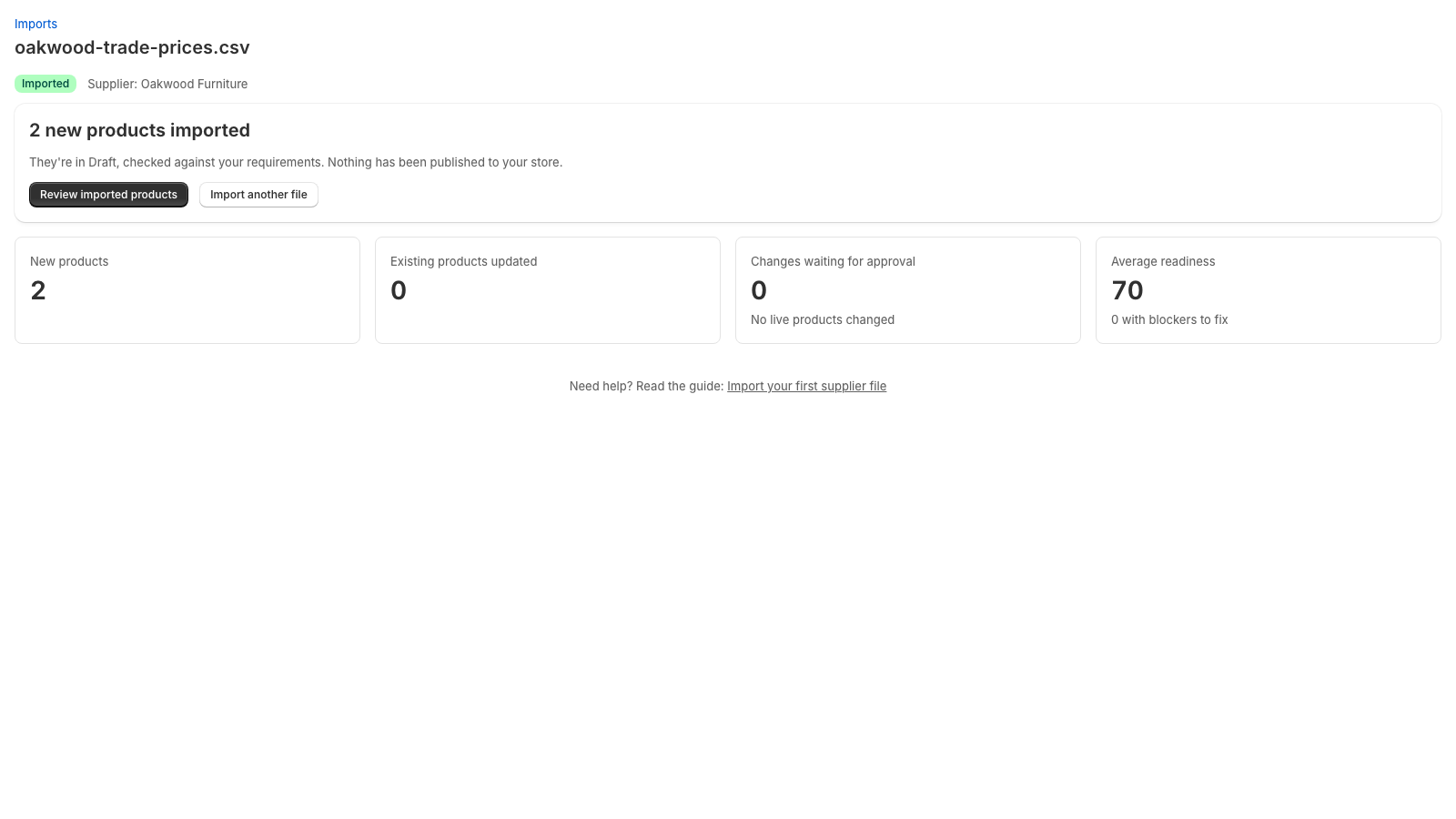
Select Review imported products to see them, then find and fix what needs attention.
If you import the same supplier again
Catalyn matches rows to your existing products, shows what changed, and holds changes to live products for your approval. To make this automatic, connect a supplier feed or let the supplier send files to you.
Related
Match rows to your products · Fix a problem with an import or feed
Still stuck, or something here is out of date? Email [email protected].