Knowledge base › Selling
Send products to Google Shopping and other channels
Channel feeds add what only Catalyn knows to your product data for Google, Meta, Pinterest and TikTok: custom labels for your ad campaigns, and an option to keep products that fail Catalyn's checks off the channel.
Open Selling, Channel feeds. Starter includes 2 channel feeds and Growth includes 5.
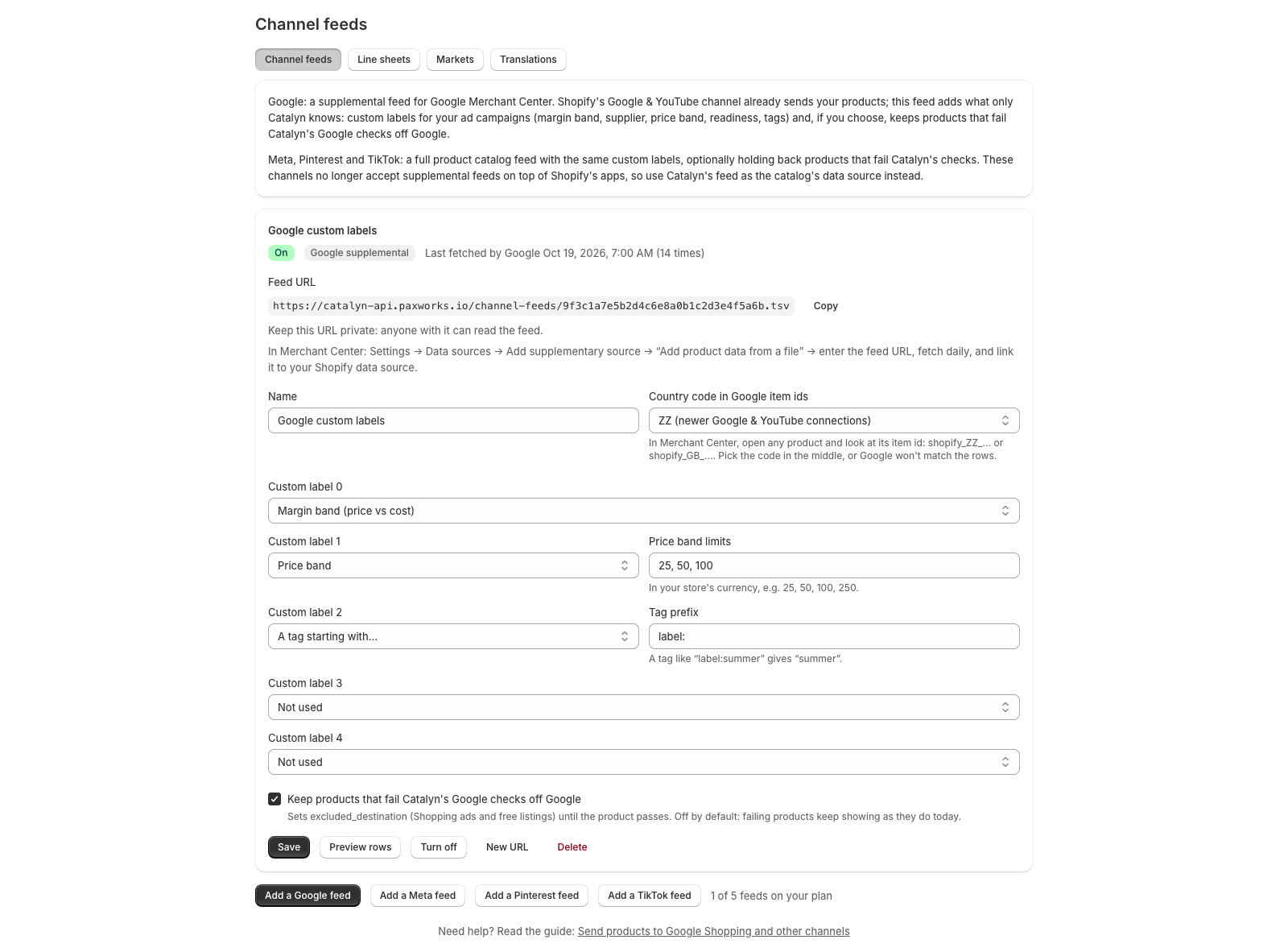
Shopify's Google & YouTube channel already sends your products to Google Merchant Center. Catalyn's Google feed is a supplemental feed: it adds to that data and does not replace it.
Create the feed
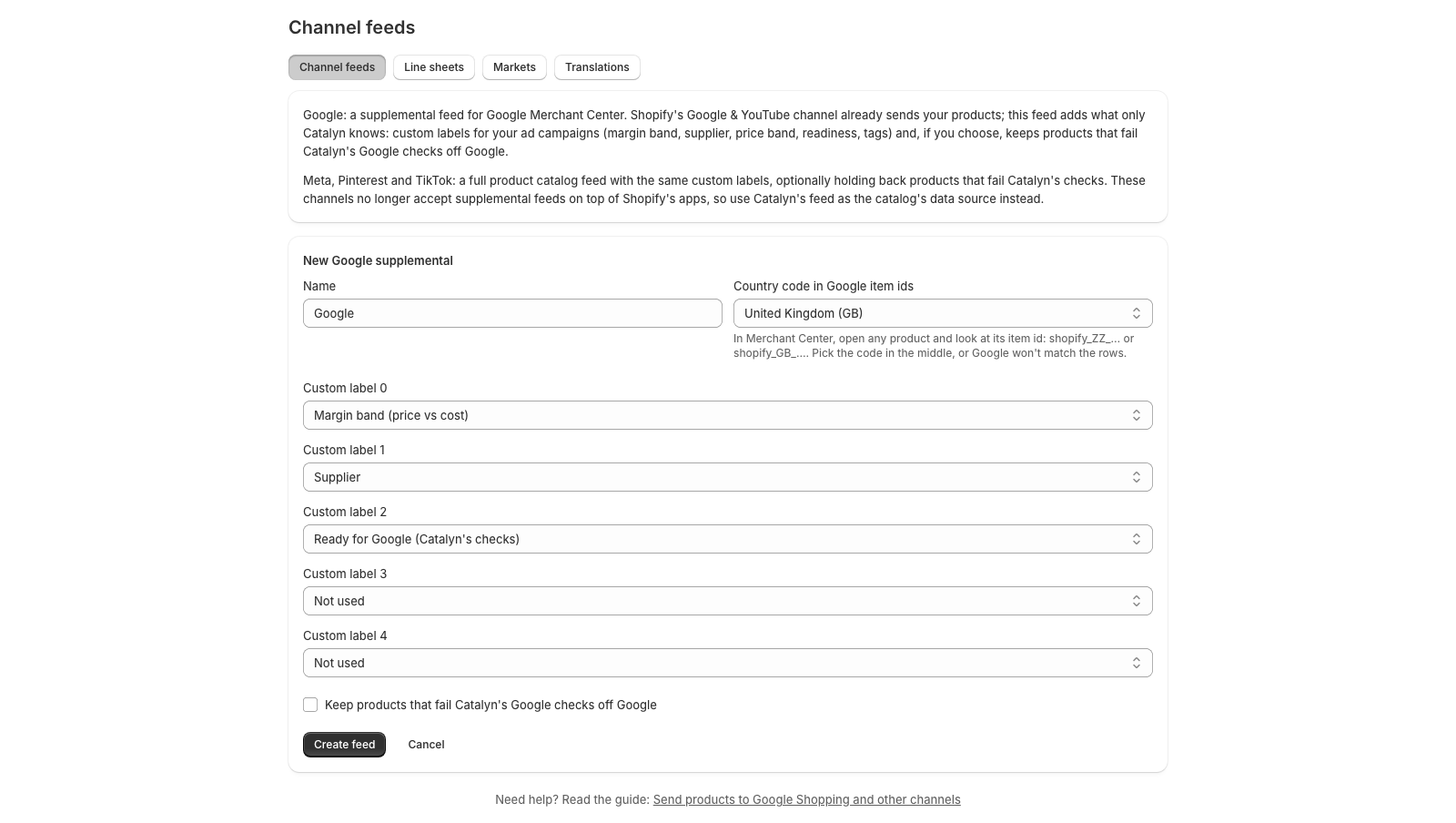
- Select Add a Google feed and give it a name.
- Choose the country code in Google item ids. In Merchant Center, open any product and look at its item id:
shopify_ZZ_...orshopify_GB_.... Pick the code in the middle, or Google will not match the rows. - Choose what each custom label holds. Google allows five, numbered 0 to 4. A label can come from the margin band (price against cost), the price band, the supplier, whether the product is ready for Google, its lifecycle stage, product type, vendor, a tag that starts with a prefix you choose, or a metafield. For price bands, enter the limits in your store's currency, for example
25, 50, 100. - Decide whether to keep products that fail Catalyn's Google checks off Google. When it is on, Catalyn tells Google not to show those products in Shopping ads and free listings until they pass. It is off by default, so failing products keep showing as they do today.
- Select Create feed.
Add it to Merchant Center
Copy the Feed URL and keep it private: anyone with it can read the feed. Then, in Merchant Center:
- Go to Settings, Data sources and choose Add supplementary source.
- Choose Add product data from a file and enter the feed URL.
- Set it to fetch daily, and link it to your Shopify data source.
Before you rely on it, select Preview rows to see exactly what Catalyn will send. The feed card shows when Google last fetched it.
Meta, Pinterest and TikTok
These channels no longer accept supplemental feeds on top of Shopify's apps, so Catalyn offers a full product catalog feed instead. Use Add a Meta feed, Add a Pinterest feed or Add a TikTok feed, check the store address and currency (filled in from Shopify), then add the URL as a scheduled data feed in that channel's catalog.
Use Catalyn's feed instead of the channel app's catalog sync, not alongside it, or products appear twice.
Change or stop a feed
- Save applies your changes to the feed.
- Turn off stops the feed without deleting it.
- New URL creates a fresh private address. The old one stops working at once, so paste the new one into the channel.
- Delete removes the feed.
Catalyn checks that the data is there. Google and the other channels still make their own decisions about which products to show.
Related
Set your quality rules · Find and fix products that need attention
Still stuck, or something here is out of date? Email [email protected].