Knowledge base › Selling
Translate your products and sell in more markets
If your store sells in more than one language or region, Catalyn shows what is missing or out of date, drafts translations with AI, and launches products in a market only when they are ready. Every change goes through an update you approve. Translations and markets are included on both paid plans.
Turn on translations
- Go to Selling, Translations.
- Select Turn on translations. Shopify asks you to let Catalyn read your languages and read and write translations. This is a one-off permission, and translations stay off until you grant it.
- Catalyn reads your translations from Shopify. For a large catalog this takes a minute or two.
If your store has no other published language, add one in Shopify under Settings, Languages first.
See what is missing
Coverage shows, for each language, how many products are fully translated and how many translations are missing, outdated or still drafts, with a bar and a breakdown of product text, option names and option values. Read now refreshes it from Shopify.
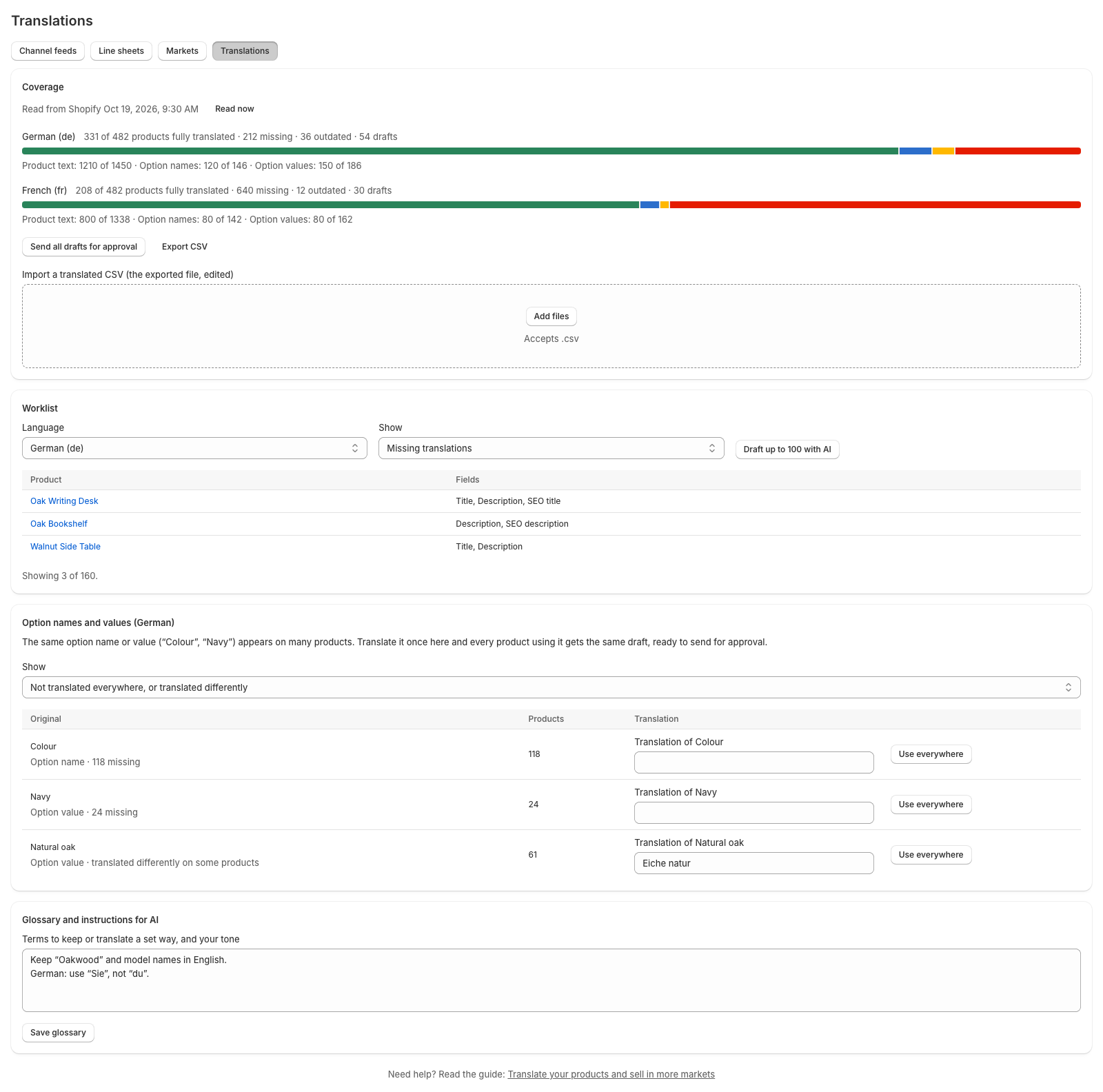
The Worklist lists the products that need work for the language and state you choose: Missing translations, Outdated translations or Drafts not sent yet. Select a product to translate it on its own page.
Draft translations with AI
- Draft up to 100 with AI writes drafts in the background for the products in the worklist. Each uses one of your AI fixes for the month, and the drafts appear as they finish.
- Under Glossary and instructions for AI, list terms to keep in English or translate a set way, and set your tone, for example "German: use Sie, not du". Select Save glossary.
- Nothing is sent to Shopify yet. You review and edit the drafts first.
Translate an option once, use it everywhere
The same option name or value, such as "Colour" or "Navy", appears on many products. Under Option names and values, type the translation once and select Use everywhere. Every product using it gets the same draft. Rows marked "translated differently on some products" show where the wording isn't consistent.
Send translations for approval
Select Send all drafts for approval. The drafts go into one update in Approvals, and they are written to Shopify only when you approve it. You can undo it afterwards.
You can also Export CSV, have the file translated, and import it back. The import saves translations as drafts for you to send.
To make translation a requirement, add the rule Translated into the store's languages under Quality rules. A product then can't go live until it is translated. See Set your quality rules.
Sell in more markets
Go to Selling, Markets and select Turn on markets. Shopify asks you to let Catalyn read and manage your markets. The page then lists each market.
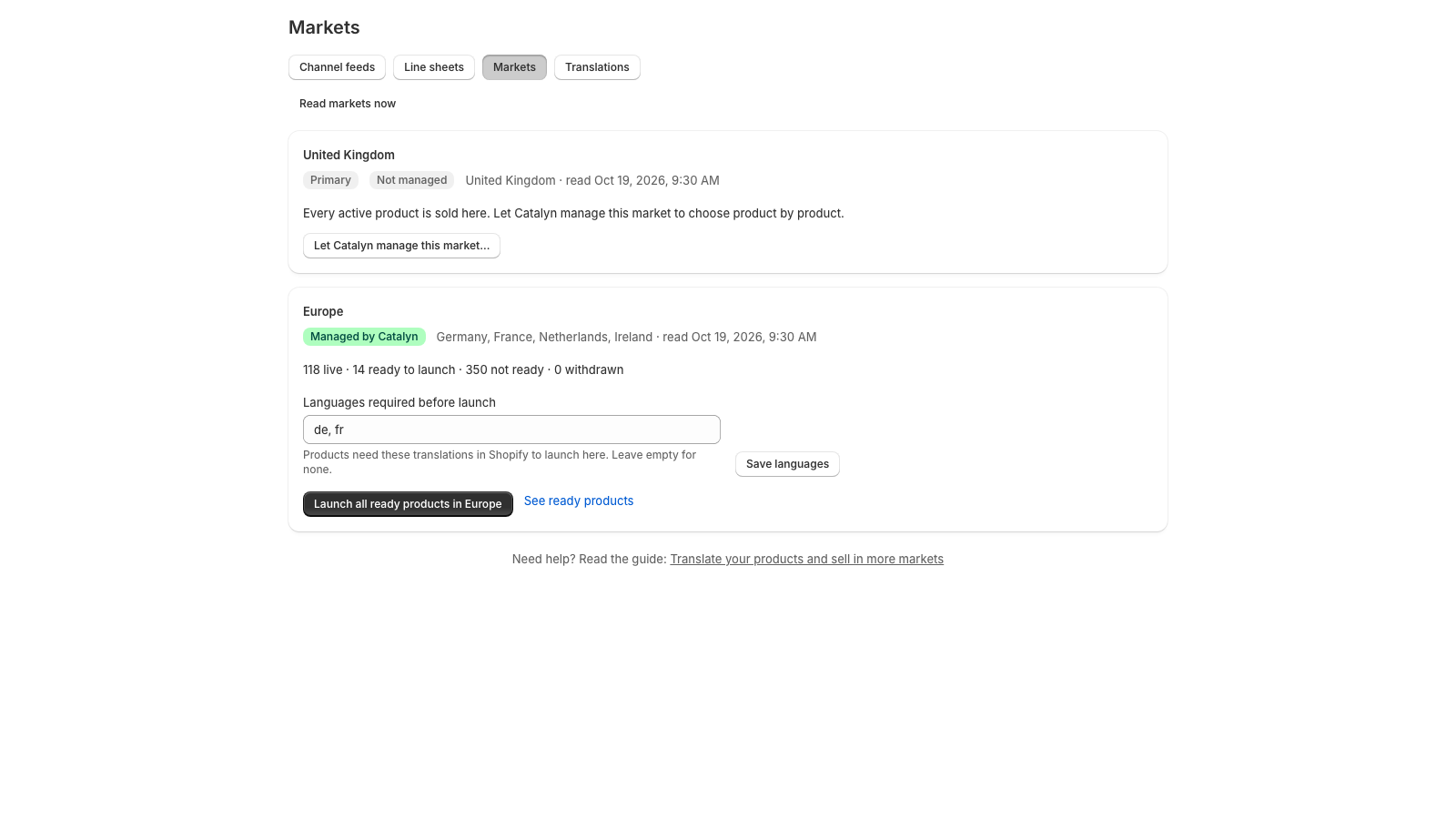
A market that is Not managed sells every active product, as before. To choose product by product, select Let Catalyn manage this market… and confirm. Catalyn then controls which products are sold there.
For a managed market:
- Set Languages required before launch, for example
de, fr. A product needs these translations in Shopify before it can launch there. Select Save languages. - The page shows how many products are live, ready to launch, not ready and withdrawn.
- Select Launch all ready products in Europe. The launch goes into an update for you to approve. Withdrawing a product works the same way.
You can also launch a single product from the Markets section of its page, and you can add a quality rule that applies only when a product launches in a market.
Related
Still stuck, or something here is out of date? Email [email protected].