Knowledge base › Products and quality
Edit products in a spreadsheet
When a change is faster in a spreadsheet, you can edit in Catalyn's own grid, or export your products, edit the file and bring it back. Either way, Catalyn shows what changed first, and changes to live products wait for your approval.
Edit in the spreadsheet editor
- Open Products and narrow the list to the products you want, or leave it as it is.
- Select Edit in spreadsheet.
- Click a cell and type. There is one row per variant. Product fields such as title, vendor, product type, tags and SEO fields are edited on a product's first row.
- Changed cells turn yellow. Save N changes at the top shows how many you have made, and Discard changes undoes them all.
- Select Save N changes.
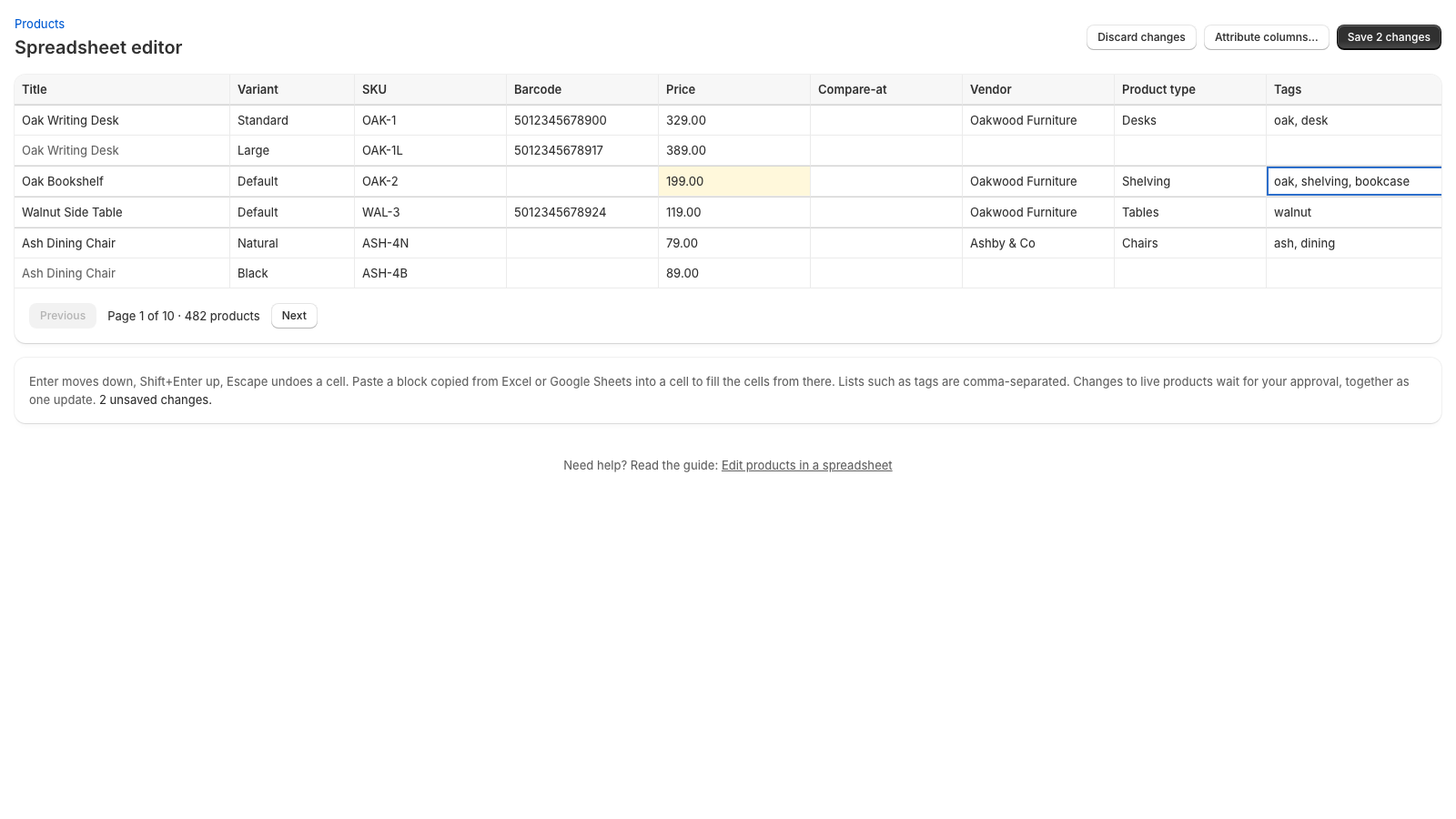
Some tips:
- Enter moves down, Shift+Enter moves up, and Escape undoes a cell.
- Paste a block copied from Excel or Google Sheets into a cell to fill the cells from there.
- Lists such as tags are comma-separated.
- Use Attribute columns… to add your own metafields as columns.
- Catalyn checks every cell when you save, and it won't overwrite anything that changed in Shopify since the grid loaded. If that happens, it says so and you can reload.
Changes to products that are live in Shopify become one update in Approvals, and nothing reaches your store until you approve it.
Export, edit and import back
- On Products, filter to the products you want. Open Export and choose Export N products as CSV or as Excel.
- Edit the file. Keep the Catalyn ID and Variant ID columns, because they tell Catalyn which product each row is.
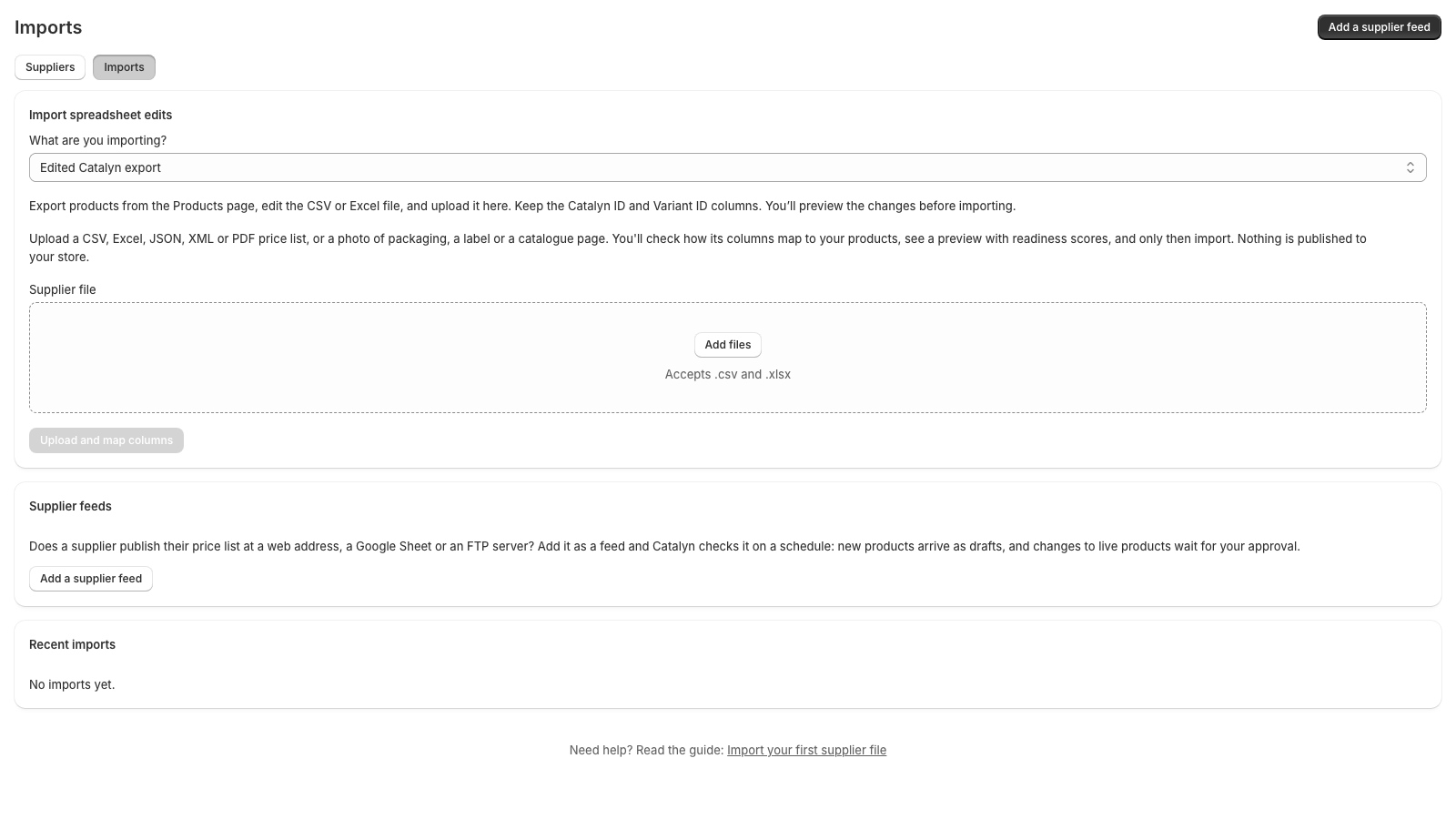
- Select Import on the Products page, or go to Suppliers, Imports and choose Edited Catalyn export under What are you importing?
- Add the file and select Upload and map columns. You get a preview of exactly which fields would change, then import it. Only the fields you edited change.
Email an export on a schedule
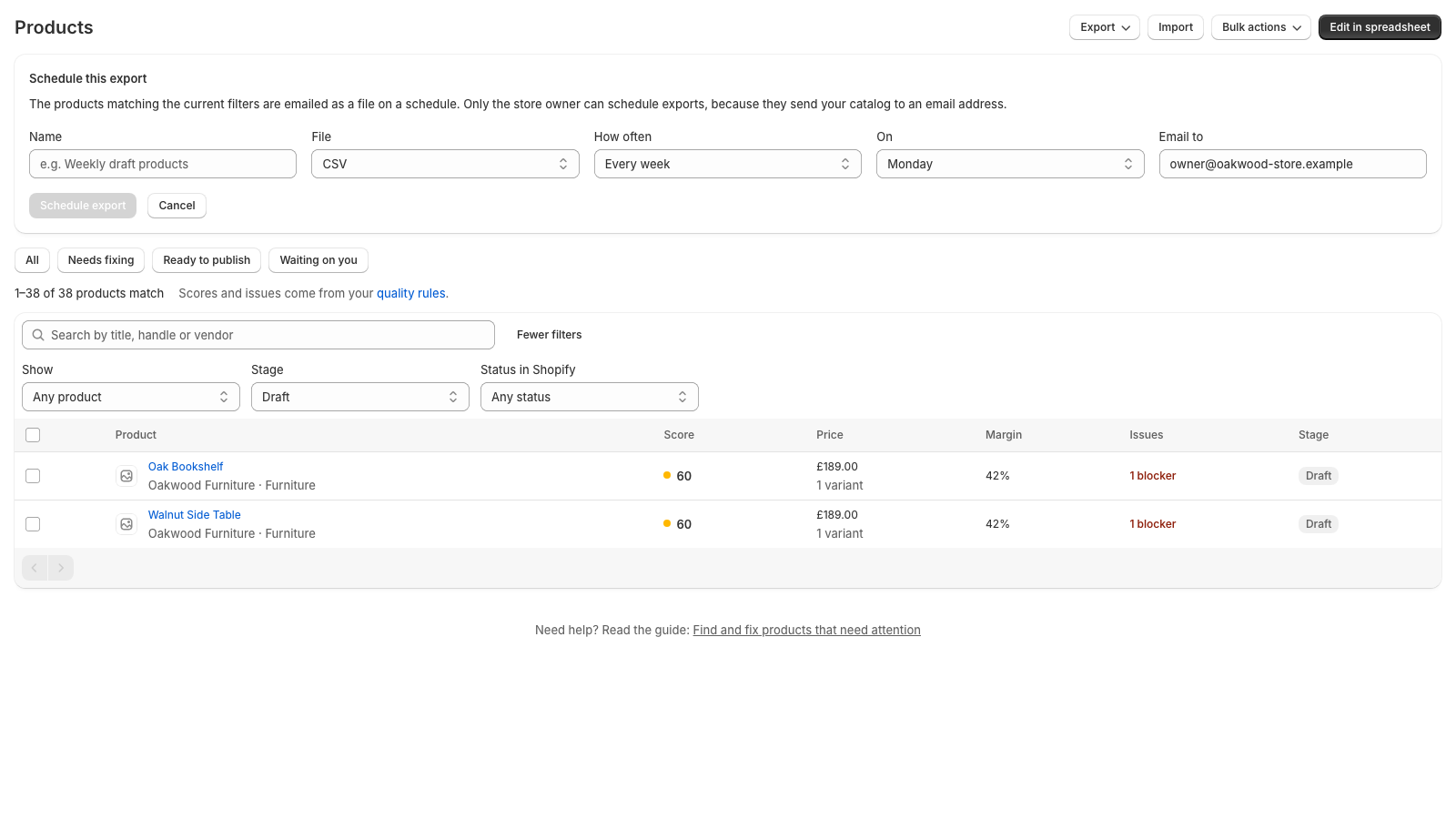
Only the store owner can schedule exports, because they send your catalog to an email address.
- On Products, filter to the products you want and open Export.
- Choose Schedule export….
- Give it a Name, choose the File (CSV or Excel), How often and, for weekly, the day, then enter the address in Email to.
- Select Schedule export.
Manage your scheduled exports under Settings, Team and email. There you can turn one off, send it now to check it, or delete it.
Related
Find and fix products that need attention · Approve and undo an update
Still stuck, or something here is out of date? Email [email protected].