Knowledge base › Products and quality
Manage your images
The Media page shows every image across your catalog, checks them for common problems, and lets you fix many at once. Changes to images on live products wait in Approvals, and you can undo them.
Check your images
Open Media. Image checks lists only the problems you have, worst first. Each line opens the images affected, and some have a button that fixes them.
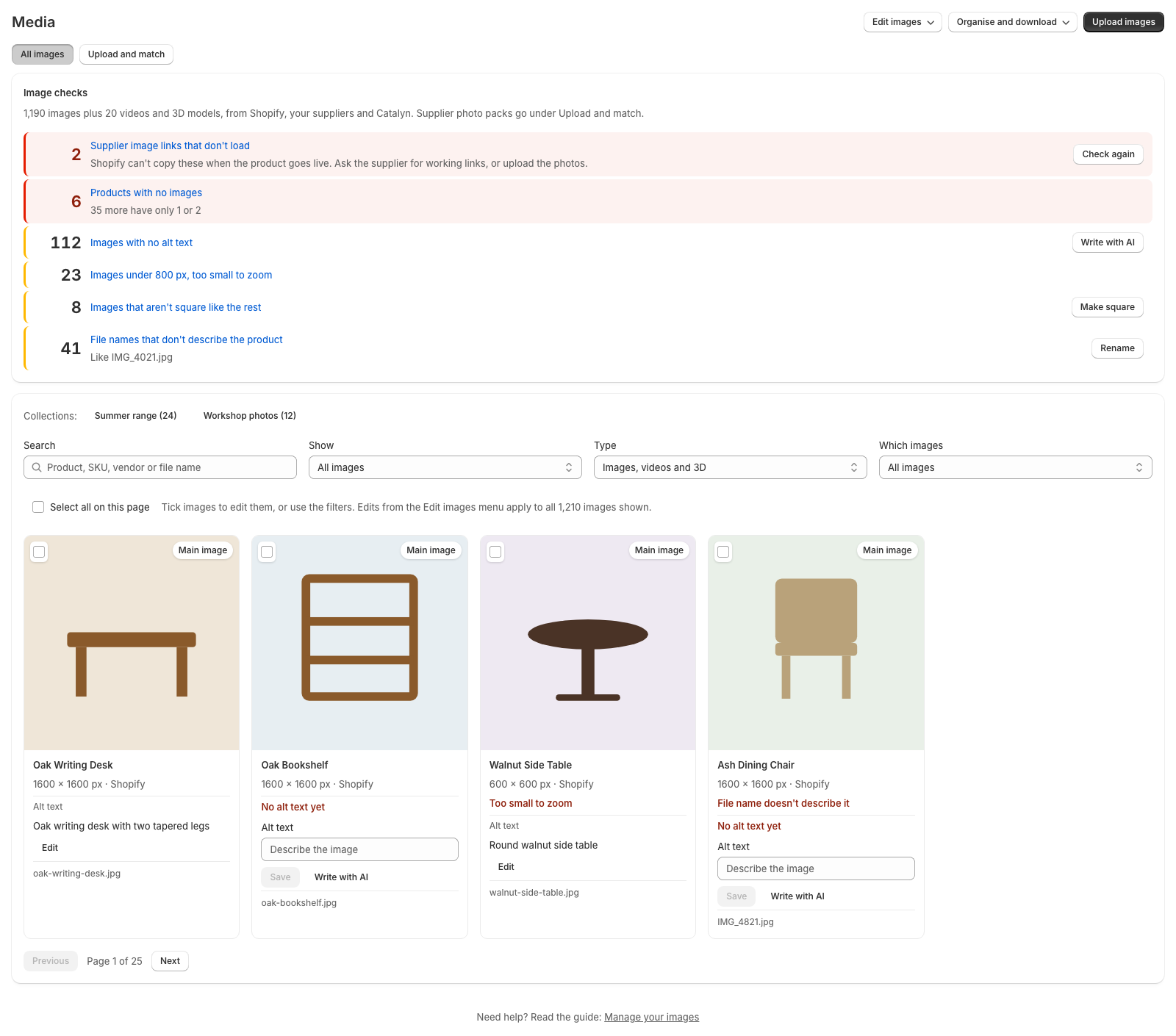
- Supplier image links that don't load: Shopify can't copy these when the product goes live. Ask the supplier for working links, or upload the photos. Check again re-checks them.
- Products with no images, and products with only one or two.
- Images with no alt text: Write with AI drafts alt text for you to review.
- Images under 800 px, too small to zoom.
- Images that aren't square like the rest: Make square fixes them.
- File names that don't describe the product, like
IMG_4021.jpg: Rename renames the file so it helps search. - Usage rights that have ended or are about to.
Below the checks, find images by product, SKU, vendor or file name. Show narrows to one problem, and Type to images, videos or 3D models. Select a collection name to see only that group.
Write alt text
Each image card shows its alt text. If there is none, type it in the card and select Save, or select Write with AI and edit what it suggests. Edit changes existing alt text. For a live product the change waits for your approval.
To do many at once, tick the images, then open Edit images and choose Write alt text for N images with AI. You review every suggestion and can edit one before you apply it.
Edit many images at once
Tick images, or use the filters to cover a whole set, then open Edit images:
- Remove backgrounds: the result is a white background. Your monthly allowance is shown, and it depends on your plan.
- Make square, or Resize and compress.
- Write alt text with AI.
- Rename for search: gives files names that describe the product. This needs a one-off permission the first time you use it, and Catalyn keeps the same file in Shopify, so images on variants stay in place.
- Other edits: your own settings or a saved preset.
Edited images are shown before and after on a review page. You choose which to apply, and the ones you untick stay as they were.
Open Organise and download to add images to a collection, take them out of one, download up to 100 as a zip, or set usage rights.
Manage one image
Select a picture to open its page.
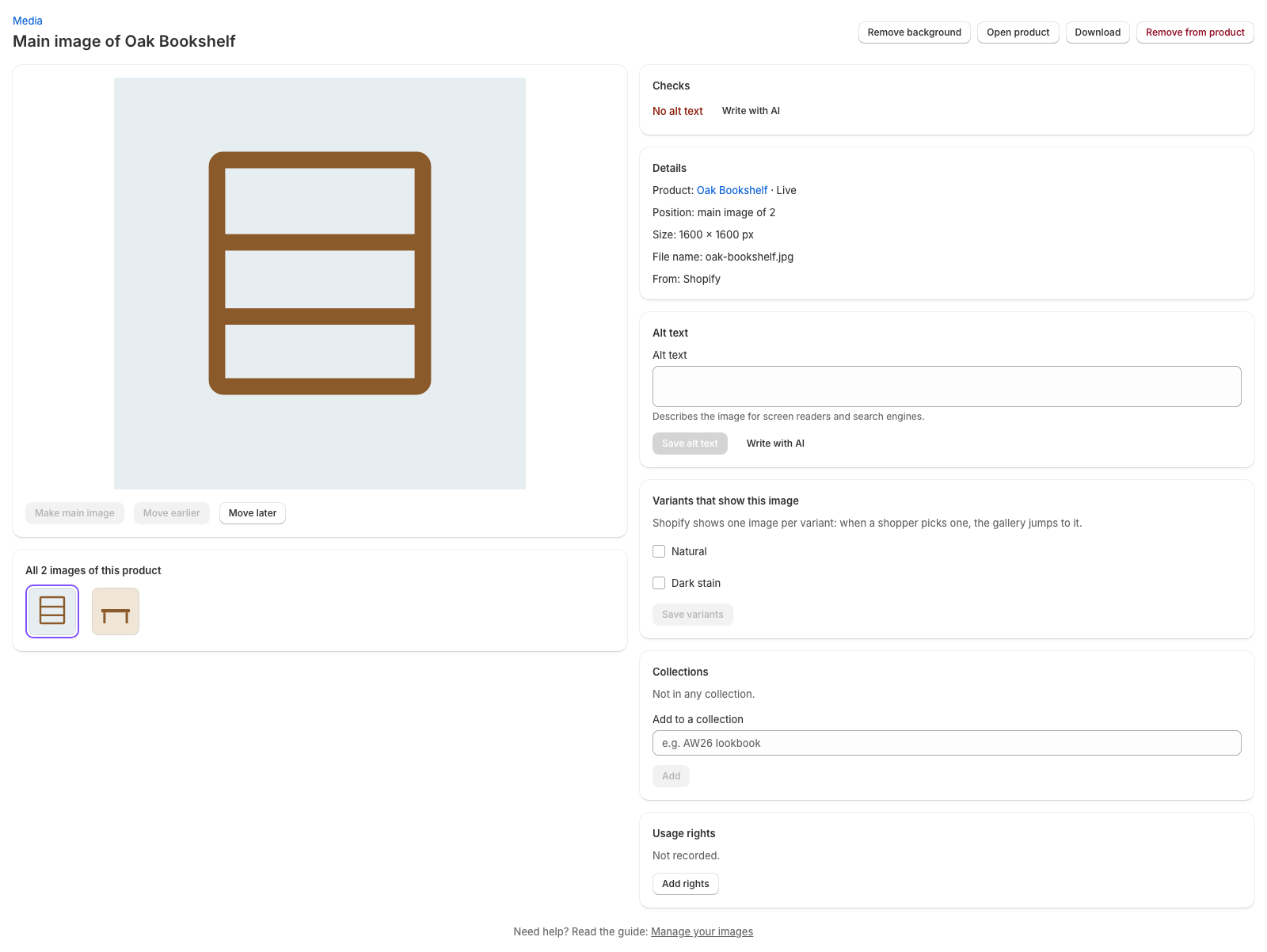
- Make main image, Move earlier and Move later change the order of a product's images.
- Alt text has Save alt text and Write with AI.
- Variants that show this image sets which variants use it: when a shopper picks that variant, the gallery jumps to this image.
- Collections groups images for filtering. Usage rights records who owns the image and when your rights end, and Home warns you when they do.
- Remove background, Open product, Download and Remove from product are at the top.
Upload and match photos
Select Upload images, or the Upload and match tab, to add your own photos. Catalyn matches them to products by name, and you can match one by hand and choose a variant. A photo named after a SKU, such as OAK-1_front.jpg, becomes that variant's image. Set usage rights for a batch as you go.
Related
Find and fix products that need attention · Approve and undo an update
Still stuck, or something here is out of date? Email [email protected].