Knowledge base › Suppliers and imports
Match rows to your products
When a supplier file arrives, Catalyn has to decide which existing product each row belongs to, so it updates the right product instead of creating a duplicate. You choose how it matches, and you decide what happens when a row fits more than one product.
Choose how rows are matched
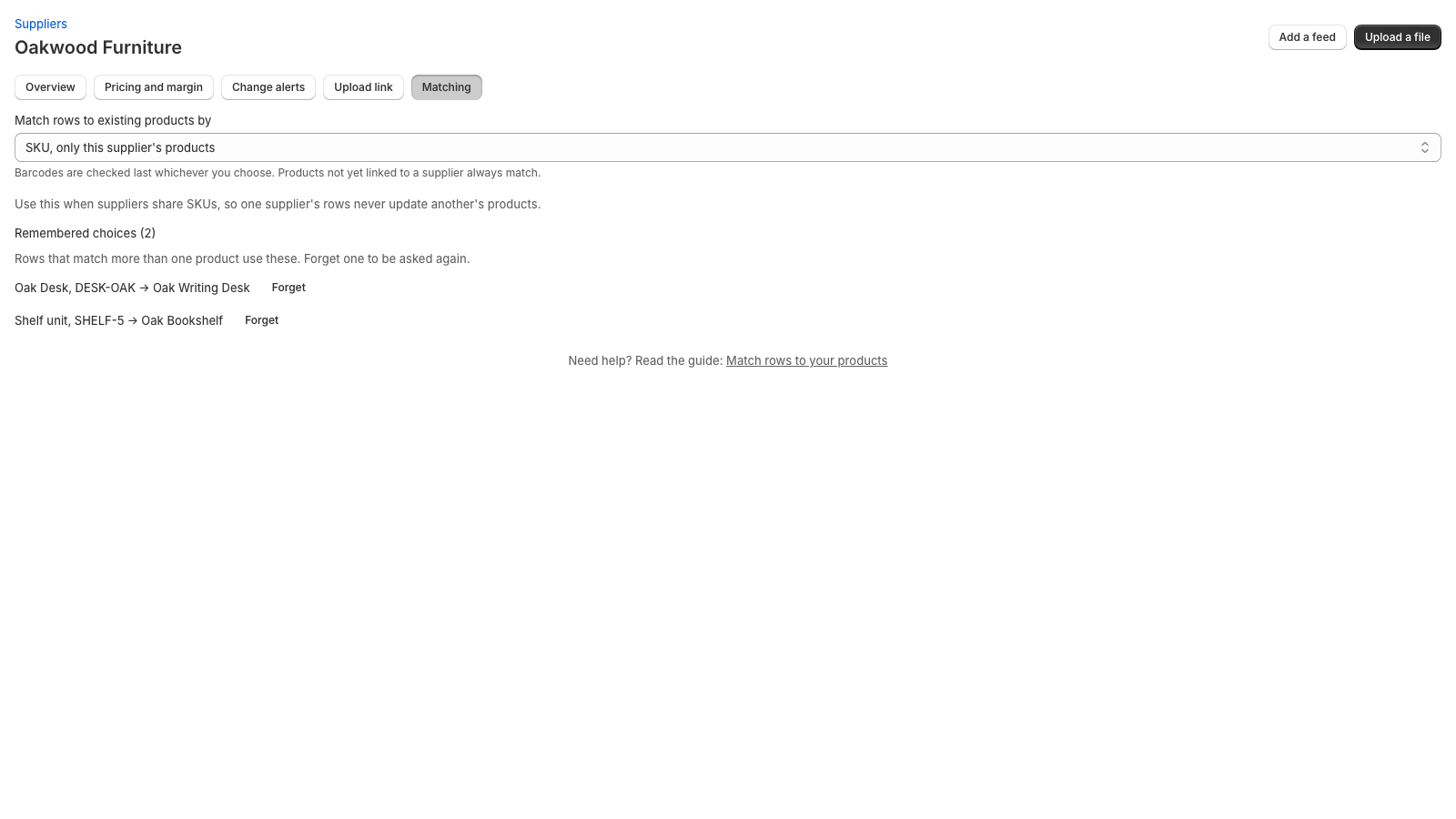
- Go to Suppliers, open the supplier and select the Matching tab.
- Under Match rows to existing products by, choose one of:
- SKU, across the whole catalogue: the default. A row matches any product with that SKU.
- SKU, only this supplier's products: use this when suppliers share SKUs, so one supplier's rows never update another's products.
- The supplier's item ID, then SKU: map a column to Supplier's item ID (for matching) on the mapping screen first, or rows match by SKU only.
- The choice saves as soon as you make it, and the next check or feed run uses it. Barcodes are checked last whichever you choose, and products not yet linked to a supplier always match.
When a row matches more than one product
Sometimes a row fits two products, for example two products that both carry the SKU. Catalyn doesn't guess. In the preview, that row waits for you.
- Find the row in the list. Under its details you will see Update which product?.
- Choose the product it should update, or Import as a new product.
- Select Use this and check again. The preview updates.
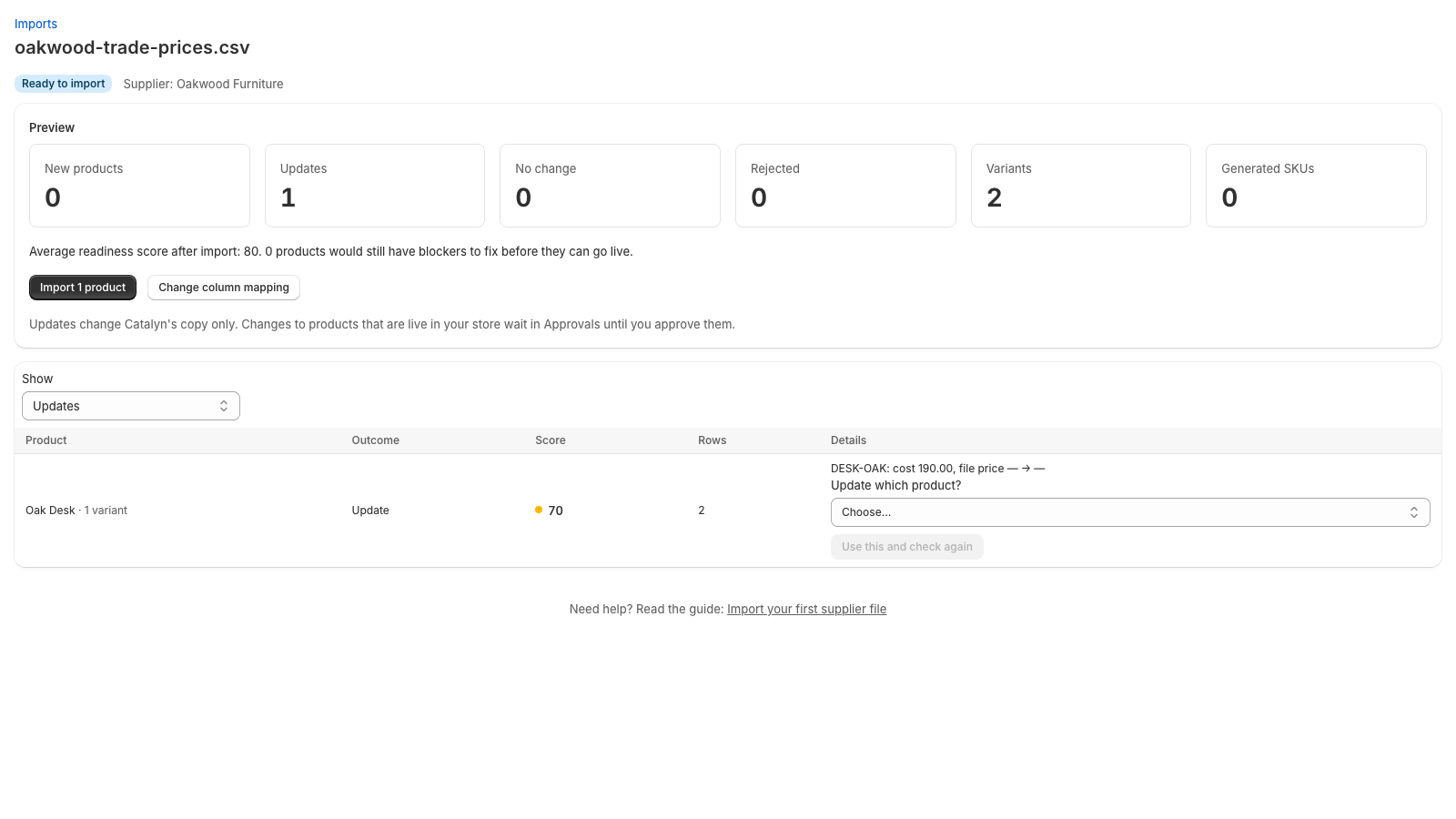
Your choice is remembered for this supplier. The next file with the same row uses it without asking. This also applies to scheduled feeds: rows a feed couldn't match are skipped and listed on the import, and you can choose for them there. The choice then applies from the next run.
Change a remembered choice
Open the supplier's Matching tab. Under Remembered choices you will see each row and the product it goes to. Select Forget to be asked again next time.
Related
Still stuck, or something here is out of date? Email [email protected].