Knowledge base › Suppliers and imports
Use approved value lists
An approved list is the set of values you accept for a field, such as your colours or your brands. Once you have a list, supplier files are checked against it: Blk and NAVY become Black and Navy, and anything new waits for you to decide. Quality rules can use the same lists. Approved lists need a paid plan.
Create a list
- Go to Products, open quality rules and select the approved list link, or go to Approved values directly.
- Select New list.
- Give it a Name, such as Colours.
- Under Values, type one value per line. Add synonyms after an equals sign, separated by commas:
Black = blk, noir. A synonym is changed to the value automatically. - Select Save list.
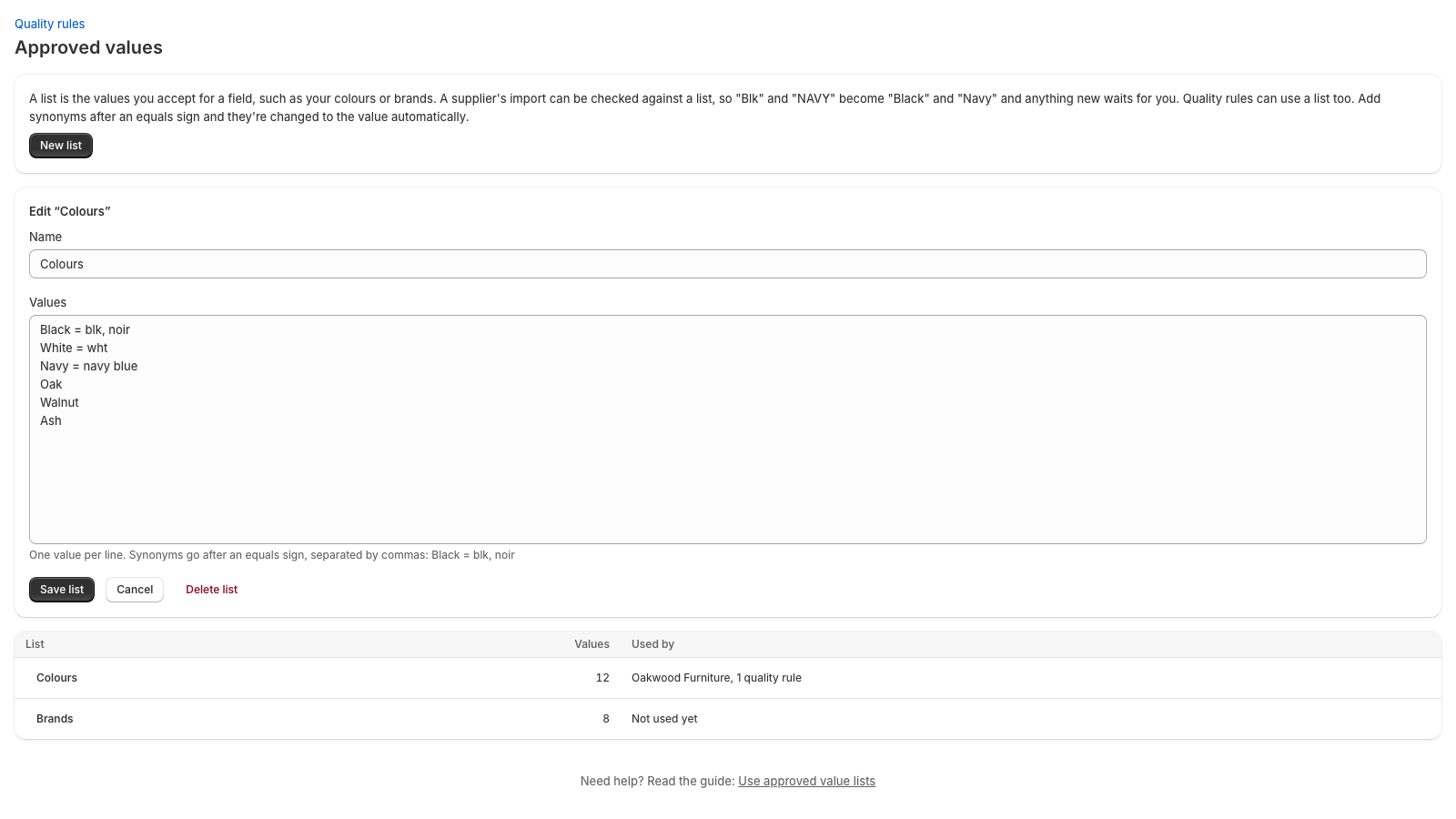
The table at the bottom shows how many values each list has and what uses it: which suppliers and how many quality rules.
You can also build a list from a supplier file. On the mapping screen, under Clean up values, select Create a list from these values.
Check a supplier's file against a list
- On the import's mapping screen, open Clean up values and, for a field, choose Check against an approved list.
- Select Check and preview.
- Values in the file that are not on the list are still imported, but they are flagged on the product and appear under Values to review, with how many products use each.
- For each value, choose what it should be:
- Change to a value on the list. The product is imported with the list's spelling.
- Add it to the list, because it is a real new value. It is then accepted for every supplier that uses the list.
- Keep it as it is for this supplier.
- Suggest answers fills in likely answers for you to check. It only suggests values that are on the list, leaves low-confidence ones blank, and saves nothing until you apply.
- Select Apply N choices and check again.
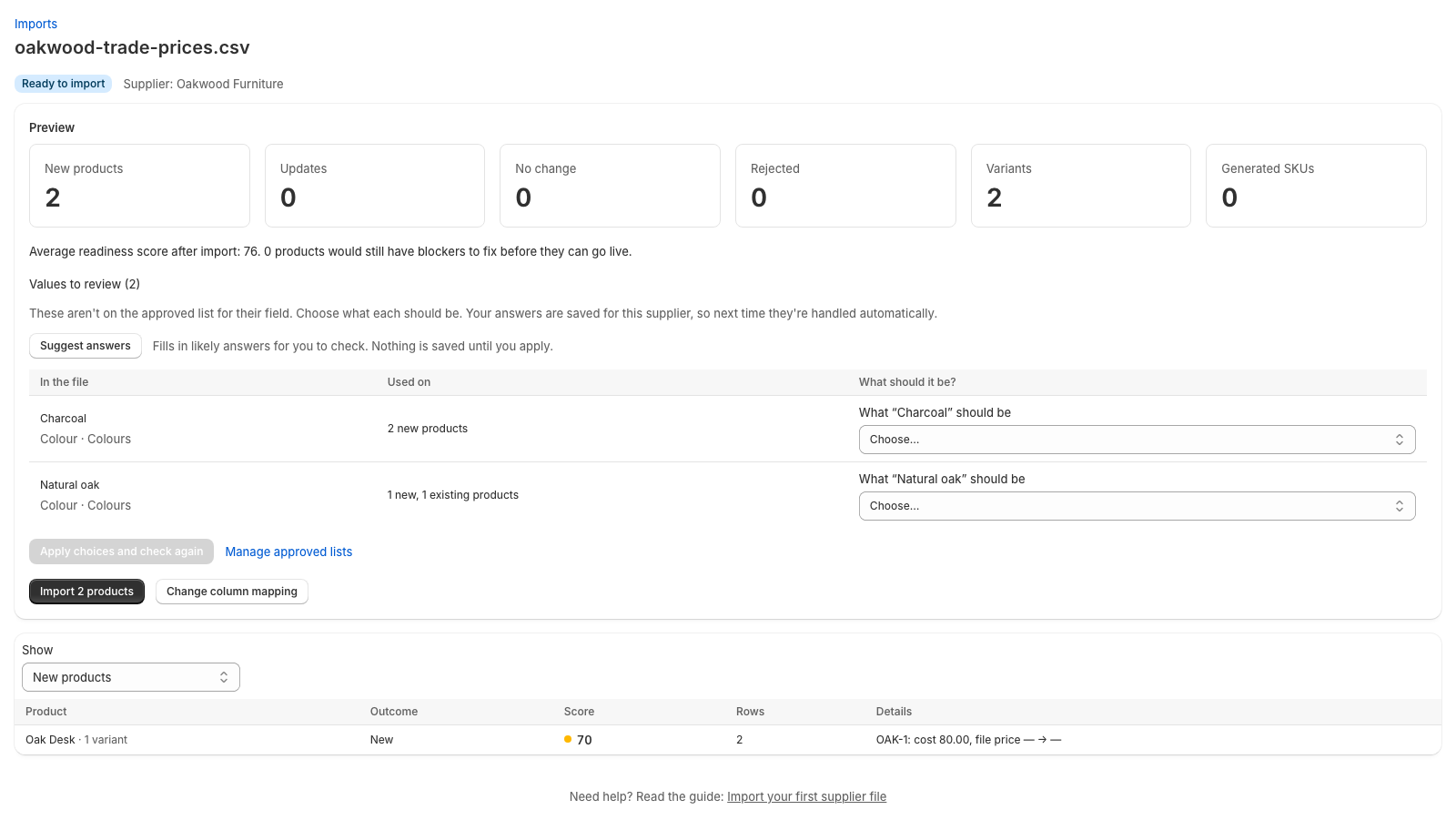
Your answers are saved for the supplier, so the next file handles those values automatically. See Clean up messy supplier values for the rest of the clean-up options.
What happens on feeds
A scheduled feed checks files against the list too. If a new product has a value that isn't on the list, the feed pauses for your review, and emails you if feed alerts are on. Existing products with an unlisted value only get a warning, so a feed doesn't stop for products you already have.
Use a list in a quality rule
In Quality rules, add a rule of the type Value is one of a list and choose the list under Allowed values come from. When you change the list, the rule follows. See Set your quality rules.
Change or delete a list
Select a list's name to edit it. Delete list removes it. A list that is in use by a supplier or a rule can't be deleted until you stop using it.
Related
Still stuck, or something here is out of date? Email [email protected].