Knowledge base › Suppliers and imports
Understand supplier alerts and scorecards
Catalyn checks every file from a supplier before you import it, and keeps a record of how good that supplier's files are. Alerts tell you when a file needs a closer look. The scorecard shows how a supplier is doing over time.
See a supplier's safeguards and scorecard
Go to Suppliers and open a supplier. The Overview tab starts with Safeguards: one line each for the minimum margin, the upload link, change alerts and scheduled feeds. A green dot means it is set up. An amber dot means it is not, and the button beside it takes you to set it up.
Under it, the Scorecard summarises the supplier over the Period you choose: the last 30 days, 90 days or 12 months.
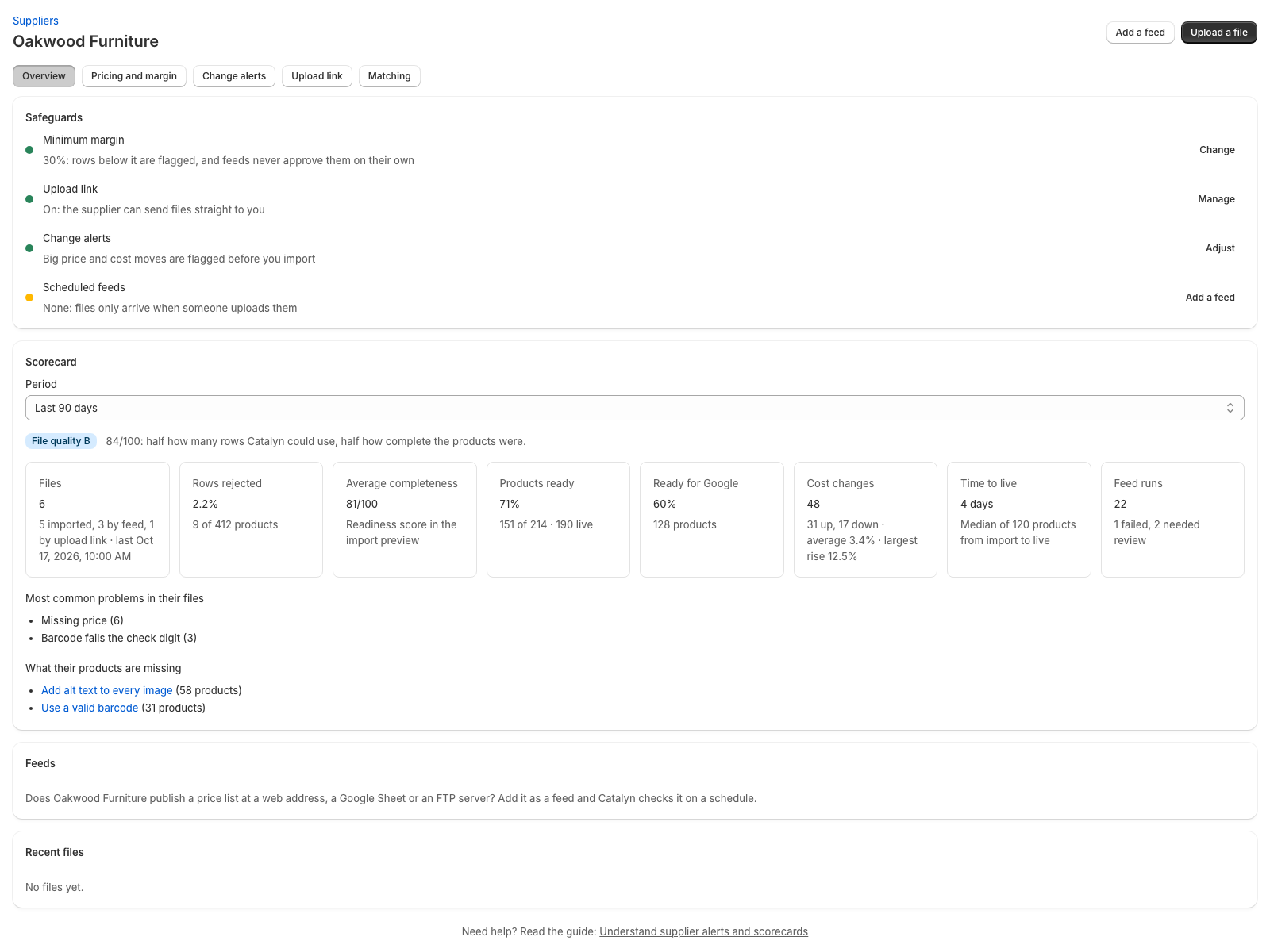
- File quality is a grade from A to D, out of 100. Half is how many rows Catalyn could use, and half is how complete the products were.
- Files, Rows rejected and Average completeness show how clean the files are.
- Products ready and Ready for Google show how many of the supplier's products pass your checks.
- Cost changes counts how many costs moved, how many went up and down, and the largest rise.
- Time to live is the median number of days from import to a product going live.
- Feed runs counts feed checks, and how many failed or needed your review.
- Most common problems in their files is worth sending to the supplier. What their products are missing links to the affected products.
What alerts you before you import
Open the preview of any file from the supplier. Under it, Catalyn shows:
- how many costs and prices went up and down;
- the largest changes, with a red badge on any cost rise above your threshold;
- any variant that would sell below your minimum margin, with the price that restores it;
- products that are in your catalog from this supplier but missing from the file.
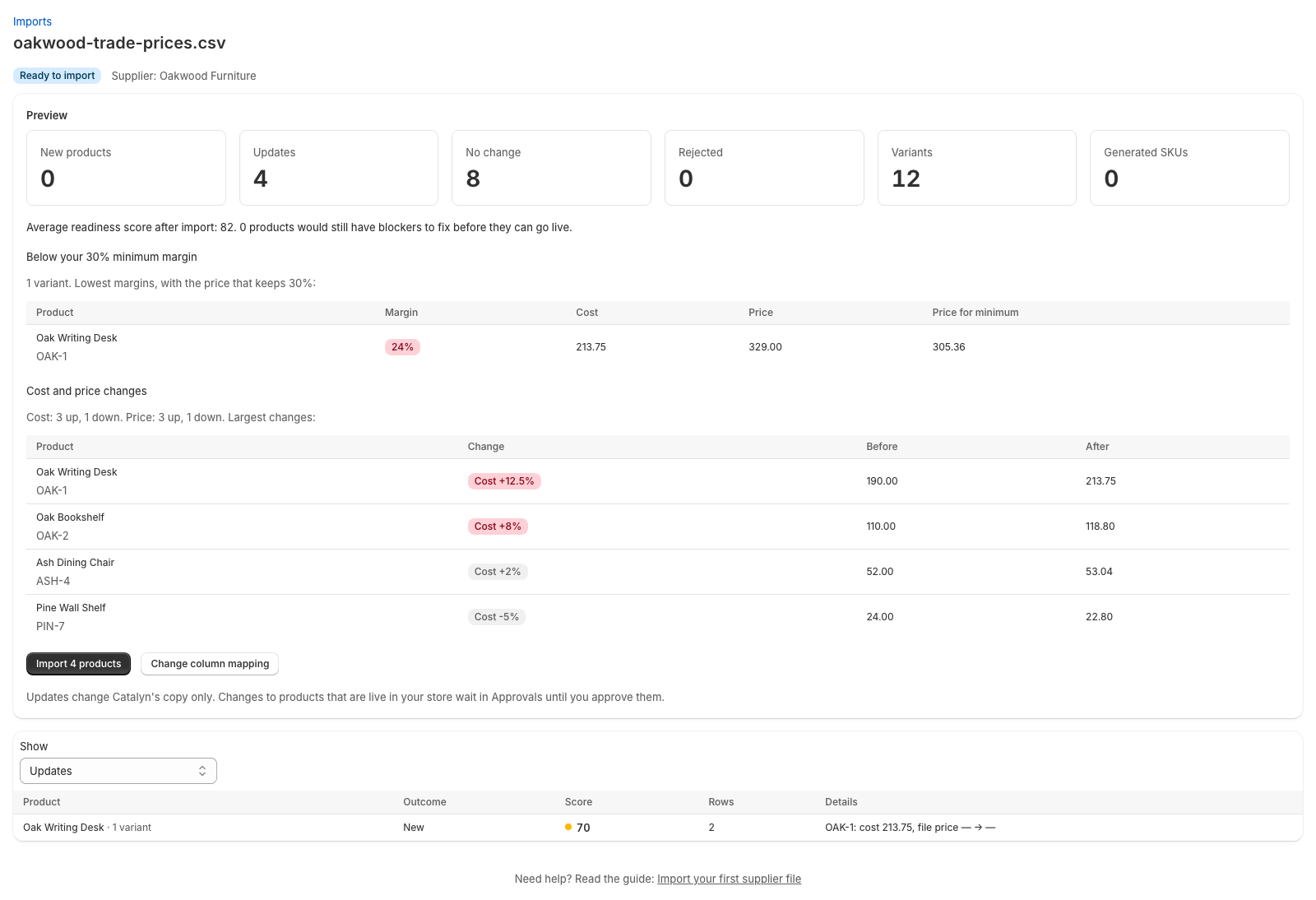
Nothing is imported until you choose to. Changes to live products still wait in Approvals.
Choose how sensitive alerts are
- Open the supplier and select the Change alerts tab.
- Under Warn when a cost rises by more than (%), enter the threshold, then select Save. The default is 5.
- Tick Pause this supplier's scheduled feed when a cost rises past this or a variant falls below the minimum margin if you want a feed to stop and wait for you instead of applying the file automatically.
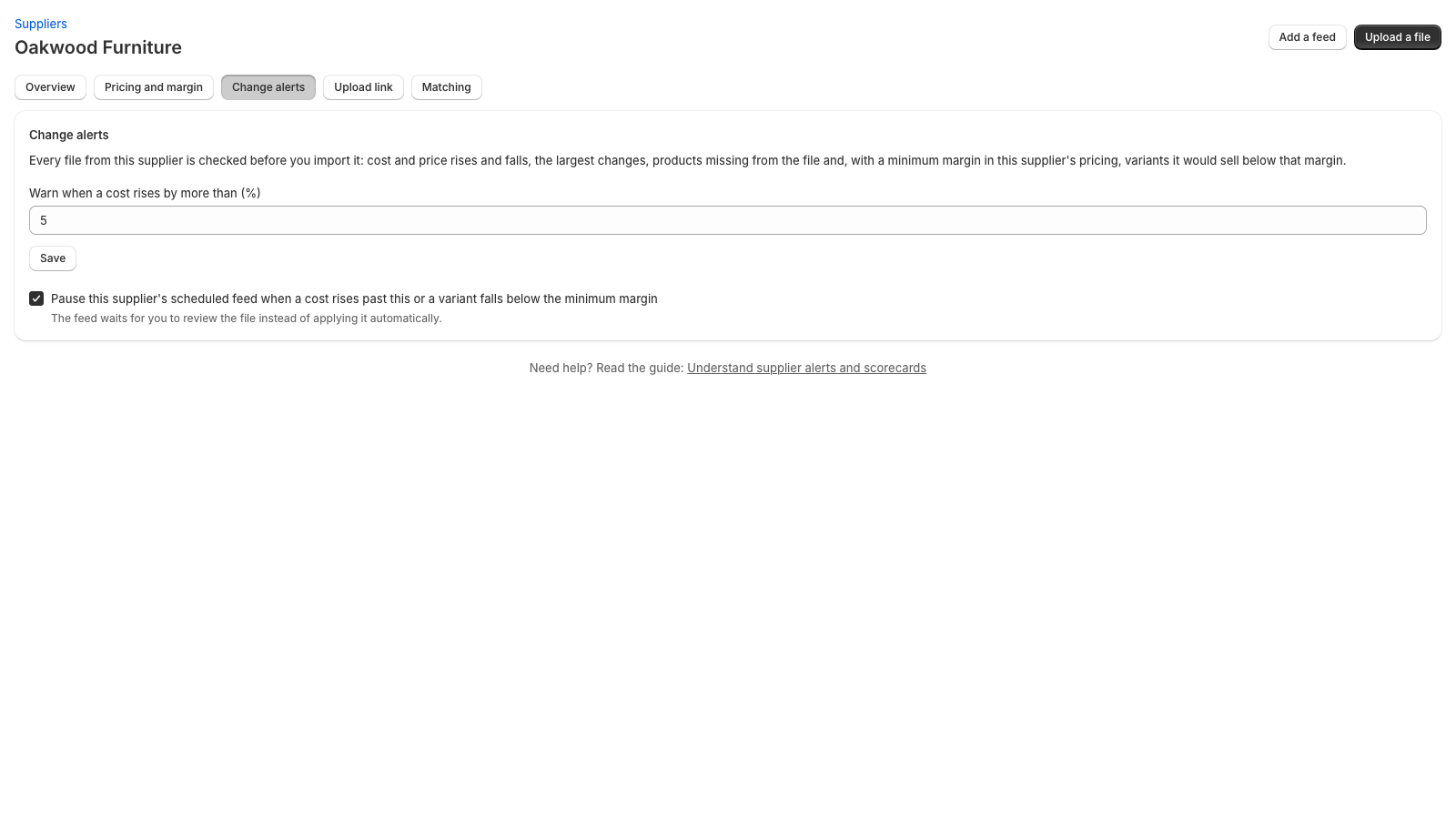
Set a minimum margin on the Pricing and margin tab for the margin warnings to work. See Set a minimum margin for a supplier.
Related
Still stuck, or something here is out of date? Email [email protected].